

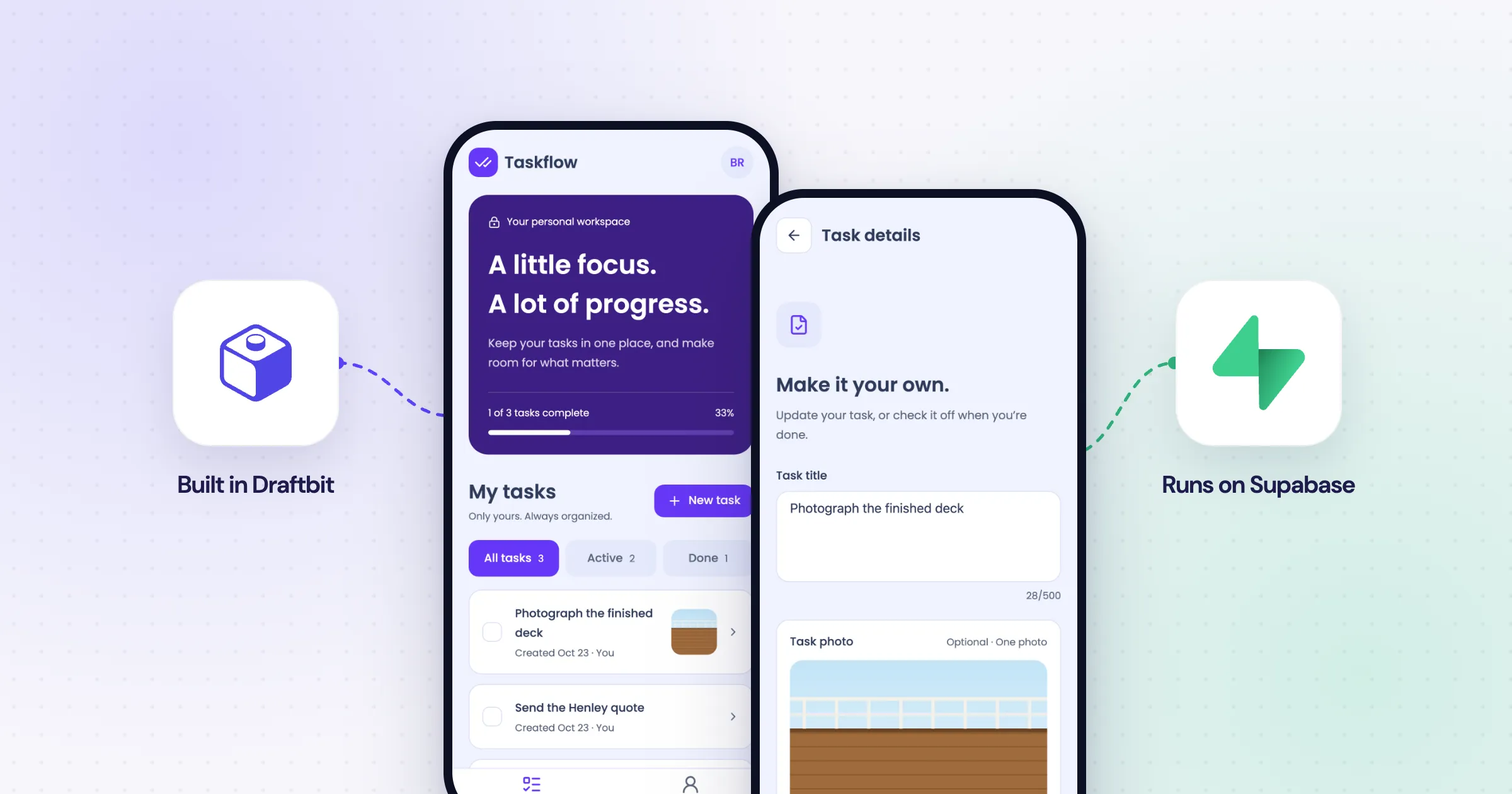
What we’ll build together
Terms we’ll use
- We: you and the Draftbit team, building this app together.
- Our app: the task app we’re building in this guide.
- Our users: the people who’ll sign up for our app and use it.
- The agent: the AI agent in Draftbit that writes our app’s code and database changes.
If you’ve picked Supabase for your backend, or you’re still deciding, this guide walks through building a real app on top of it together, and you don’t need to have used Supabase before. We’ll explain each piece as we go.
We’re going to build a task app for a small team. Our users will be able to sign up with an email and password, add tasks, check them off, and attach a photo to each one. So if you’re testing on two phones, you can finish a task on one, and the other will catch up automatically. All of the code that Draftbit produces for mobile apps is based on React Native and Expo, and we’re using Supabase for the backend, authentication, database, and photo storage, and it also handles the live updates.
For the purposes of this guide, we’re going to stick to a small version one, where each user can only see their own tasks. We’ll probably want shared team lists at some point, but before we get there, we’ll sign in as a second user and make sure they can’t see the first user’s tasks. It’s an easy check to skip when everything seems to be working, but it’s what keeps our users’ data private as our app grows, so we’ll walk through it with the real requests we sent and the responses we got back.
Choose your setup
There are two ways to put Supabase behind a Draftbit app. For a new app, we’d use a Draftbit-managed backend, which you can move into your own Supabase account whenever you want.
| Draftbit-managed backend (recommended) | Your own Supabase project | |
|---|---|---|
| How you add it | Choose Supabase under Database when you create the project | Create the project in Supabase, then connect it to Draftbit |
| Who owns the account | The Draftbit team manages it until you claim it | You, from day one |
| What the agent can do | Write migrations, apply them to Development, and run Supabase’s security checks | What the Supabase MCP connection allows |
| Test and live | Development, Staging, and Production, each a separate Supabase project | Whatever you’ve set up in Supabase |
| Where you change settings | The Supabase panel in Draftbit | Supabase’s dashboard |
| Cost | Included on every Draftbit plan, free during the beta | Your Supabase plan |
| Moving later | Claim this project moves Production into your Supabase organization | Already yours |
Connecting your own project makes sense when your data already lives there, or when your company needs to own the account from the start. The Supabase MCP page covers that connection, including how to keep the agent inside one project. Either way, our app talks to Supabase with its own client code and its own sign-in, which is what the rest of this guide builds.
Everything here runs in the web preview, in Expo Go, and in a store build. The Supabase client is plain JavaScript, and the packages it needs to save a session on the phone are already included in Expo Go, so we won’t need a development build for any of it.
Before you start
You’ll need:
- A Draftbit account. The built-in Supabase backend is on every plan, including Free.
- Two email addresses you can check, for two test users. Plus addresses on one inbox, like
you+a@example.comandyou+b@example.com, work fine. - A rough idea of the data our app will store. For this guide, that’s one table: a task with a title, a done status, an owner, a created date, and later a photo.
We tested this guide with Expo SDK 55, React Native 0.83, @supabase/supabase-js 2.118, and @react-native-async-storage/async-storage 2.2. Draftbit’s managed Supabase is in open beta, so some labels may have moved by the time you read this, and if a screen doesn’t match, the Supabase help page has the current layout.
Create the app and its Supabase backend
When we create the project, we’ll pick Supabase as the database, and our project gets a Supabase Backend app next to the mobile app, with its own agent.
From your dashboard, choose Create New Project, then Build. Select Mobile App, and under Database select Supabase.
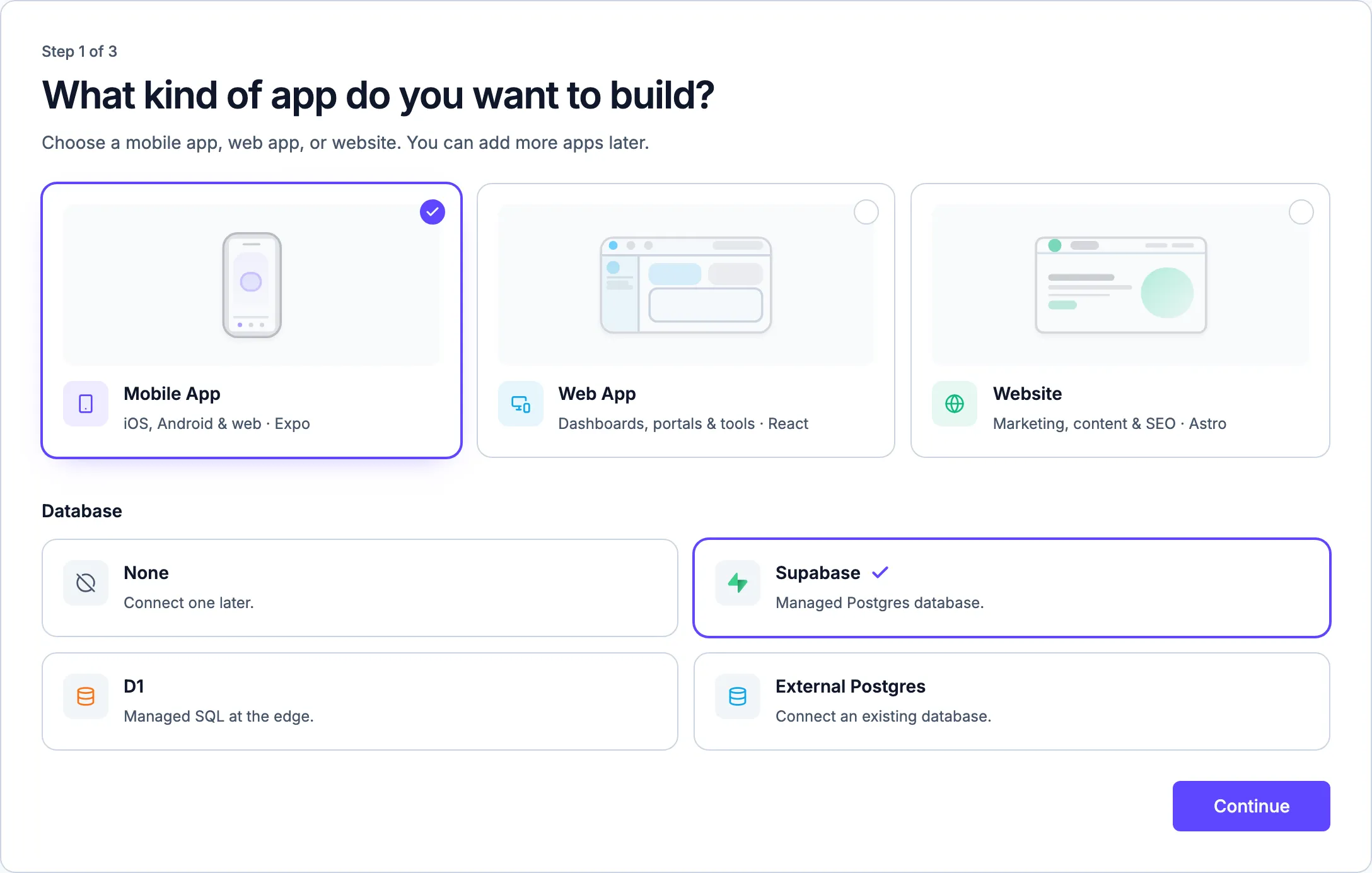
Step 1 of the project wizard. Supabase is one of four database choices.
On the next step, we’ll choose a starting template. We used TaskFlow, a task app with a home dashboard, task detail pages, and a creation form, so the agent could spend its time on the backend instead of the layout. Then we describe the app:
Turn this template into a private task tracker for a small team. People sign up and sign in with email and password. A task has a title, a done status, an owner, and a created date, and each person only sees their own tasks. Use the Supabase database with row level security, read and write real data instead of sample records, and include loading, empty, and retry states.
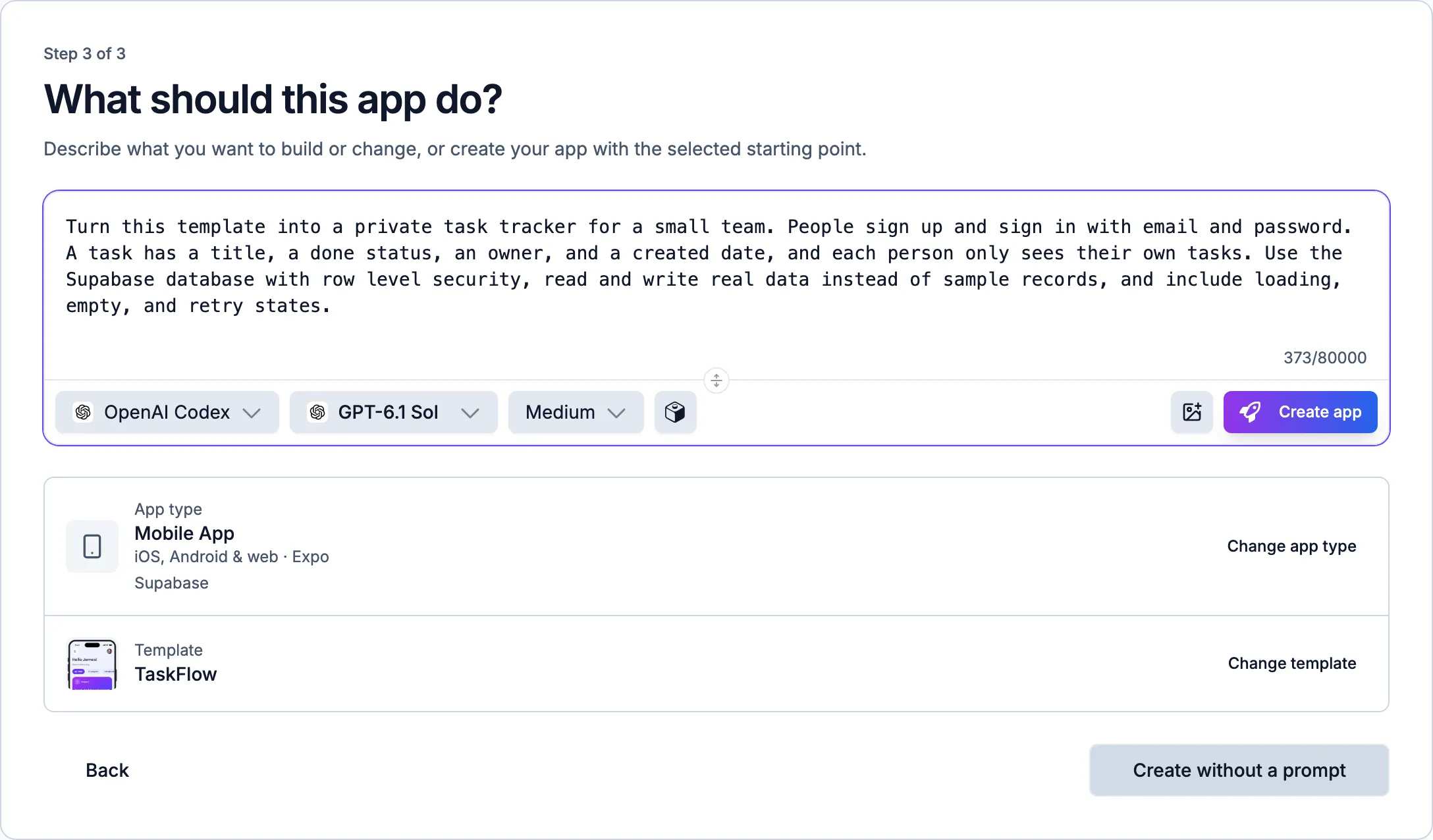
The last step shows what we picked. Selecting Create app starts both agents.
Our project now has two apps: the mobile app and Supabase Backend, which the project page describes as “Shared Supabase database, auth, and storage for every app in this project.” Both start building at the same time. In our run, the backend finished in about a minute, while the mobile app took about eight and used clearly labeled demo data in the meantime. Once the backend was done, its summary was passed to the mobile app’s agent automatically, and that agent swapped the demo data for real Supabase calls without another prompt from us.
If the app still says it’s using sample data after both apps finish building, you can ask its agent:
Connect the app to the Supabase backend and remove the demo data.
Define private tasks with row level security
Once the backend is set up, the agent in our Supabase Backend app writes a migration, which is a SQL file that changes the database. This one creates the tasks table, turns on row level security, and adds a policy for each thing our app needs to do.
Row level security (RLS) is a Postgres feature that checks every request against the user who’s signed in before it lets them read or change a row. When RLS is turned on and there aren’t any policies yet, every request is turned down, so nobody can read or write anything through the API. Each policy then allows one specific thing: a user reading their own tasks, adding a task as themselves, editing their own tasks, and deleting them. We need all four, because our app doesn’t just read tasks, it also creates, updates, and deletes them.
We didn’t need a separate prompt for this, because our first prompt already asked for row level security. If you’re adding a table to an app that already exists, a prompt like this one to the Supabase Backend app gets you the same thing:
Add a tasks table with row level security. Each signed-in user can read, add, edit, and delete only their own tasks. Fill in the owner from the signed-in user, and only let people change a task’s title and done status.
You should end up with a migration like this one, which is what our backend’s agent wrote. It’s saved in supabase/migrations/ in the Supabase Backend app’s files and was applied to Development:
create table public.tasks (
  id uuid primary key default gen_random_uuid(),
  title text not null check (char_length(btrim(title)) between 1 and 500),
  done boolean not null default false,
  owner_id uuid not null default auth.uid() references auth.users(id) on delete cascade,
  created_at timestamptz not null default now()
);

create index tasks_owner_created_idx on public.tasks (owner_id, created_at desc, id);

alter table public.tasks enable row level security;

revoke all on table public.tasks from public, anon, authenticated;
grant select, delete on table public.tasks to authenticated;
grant insert (title, done, owner_id) on table public.tasks to authenticated;
grant update (title, done) on table public.tasks to authenticated;

create policy tasks_select_own on public.tasks
  for select to authenticated
  using (owner_id = (select auth.uid()));

create policy tasks_insert_own on public.tasks
  for insert to authenticated
  with check (owner_id = (select auth.uid()));

create policy tasks_update_own on public.tasks
  for update to authenticated
  using (owner_id = (select auth.uid()))
  with check (owner_id = (select auth.uid()));

create policy tasks_delete_own on public.tasks
  for delete to authenticated
  using (owner_id = (select auth.uid()));
There are three details in there worth knowing about. owner_id defaults to auth.uid(), so our app only has to send a title, and the database fills in who owns the task. The grants also limit which columns can be changed: someone who isn’t signed in can’t do anything at all, and a signed-in user can only change a task’s title and done, so there’s no way for one of our users to reassign a task to someone else. And wrapping auth.uid() in select lets Postgres work out the user once per query instead of once per row, which Supabase’s docs recommend for performance.
To see the result, we’ll open the project’s Supabase panel (Manage Supabase on the Supabase Backend card), then Database and the Access tab.
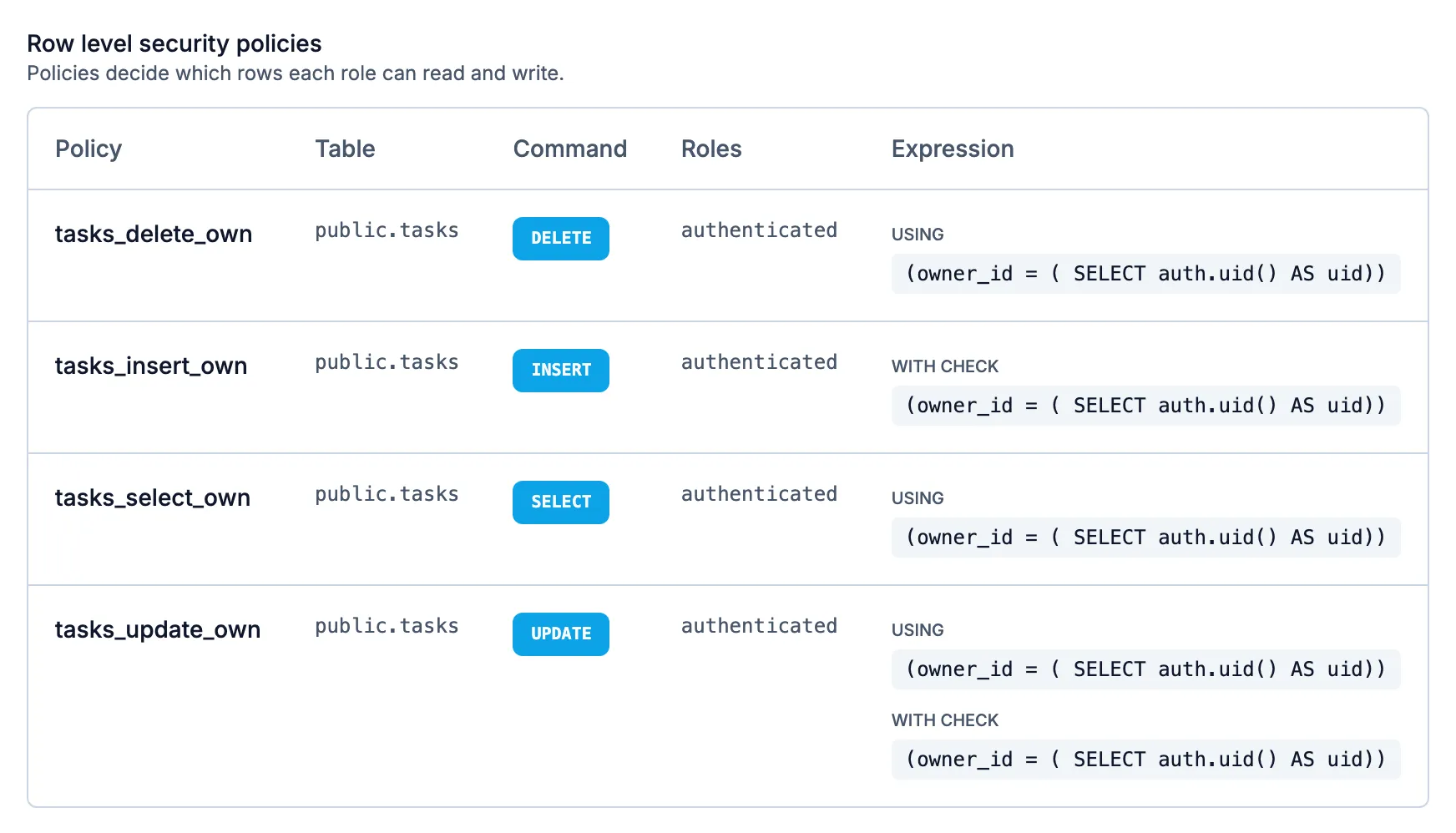
One policy per operation, each limited to the signed-in owner.
The Access tab is read-only, so if we want to change a policy, we ask the backend’s agent for a new migration. That way the change is saved in the backend’s files and reaches Staging and Production when we publish. In our run, the agent also ran Supabase’s security advisors after applying the migration, which flag problems like a table without row level security, and the same list shows up under Suggestions in the panel.
Connect the app to Supabase
Our app reaches Supabase with two values, the project URL and a publishable key, which it reads from EXPO_PUBLIC_SUPABASE_URL and EXPO_PUBLIC_SUPABASE_PUBLISHABLE_KEY.
In our run, the mobile app’s agent added both to the app’s Build Config as plain text variables for the Development environment. Each environment has its own Supabase project, so Staging and Production will need their own pair once we publish the backend there, which we’ll cover in Test, production, and switching later.
The same agent also set up the Supabase client on its own once the backend was ready. If you’re connecting an existing app, or the agent’s setup looks different from what’s below, this prompt covers it:
Connect the app to our Supabase backend with the official JavaScript client. Use one client for the whole app, save the session on the phone so people stay signed in, and only refresh the session while the app is open.
The agent should install @supabase/supabase-js, @react-native-async-storage/async-storage, and react-native-url-polyfill, and you should end up with a client along these lines. This is the core of what ours wrote, and it matches the setup in Supabase’s Expo React Native tutorial:
import "react-native-url-polyfill/auto";
import AsyncStorage from "@react-native-async-storage/async-storage";
import { createClient, processLock } from "@supabase/supabase-js";
import { AppState, Platform } from "react-native";

export const supabase = createClient(
  process.env.EXPO_PUBLIC_SUPABASE_URL!,
  process.env.EXPO_PUBLIC_SUPABASE_PUBLISHABLE_KEY!,
  {
    auth: {
      ...(Platform.OS !== "web" ? { storage: AsyncStorage, lock: processLock } : {}),
      autoRefreshToken: true,
      persistSession: true,
      detectSessionInUrl: Platform.OS === "web",
    },
  },
);

// Refresh the session only while the app is in the foreground.
if (Platform.OS !== "web") {
  AppState.addEventListener("change", (state) => {
    if (state === "active") supabase.auth.startAutoRefresh();
    else supabase.auth.stopAutoRefresh();
  });
}
AsyncStorage keeps the session on the phone, so our users stay signed in after they close the app. The AppState listener pauses token refreshes while the app is in the background, since timers on a phone can’t be trusted then, and starts them again when the app comes back. If the agent writes something different for your app, those are the two pieces to look for.
The publishable key is meant to ship inside our app. It identifies the Supabase project, and row level security decides what each request can actually see. A secret key is a different thing entirely: it skips row level security, and anything in an EXPO_PUBLIC_ variable is built into the app where anyone can read it, so a Supabase secret key or service_role key should never go in one.
Add sign-in and keep people signed in
Our first prompt asked for email and password sign-in, so the agent built sign-up, sign-in, and sign-out with signUp and signInWithPassword. If yours didn’t, or you’d like password recovery too, you can ask:
Add email and password sign-up, sign-in, password recovery, and sign-out with Supabase Auth. Keep people signed in after they close the app. Wait for the saved session to load before choosing the signed-in or signed-out screens, and clear the task list when someone signs out.
When we tried it in the preview, a new account was signed in straight away, because new Supabase projects start with email confirmation turned off. That’s handy while we’re testing, but you’ll likely want it on before launch. The setting is Confirm Email, under Authentication, Sign in methods, Email in the Supabase panel, and it’s set separately for each environment.
Once confirmation is on, sign-up returns a user with no session until they click the link in their email, so our app should show a “check your email” screen for that state rather than an error. Confirmation and password-reset links also need somewhere to land, which means adding our app’s addresses under Authentication, URL Configuration, Redirect URLs. Our published web addresses are added there automatically. A native app opens through its own scheme, set as scheme in app.config.js (ours was taskflow-expo), so we’ll add a redirect URL with that scheme too, such as taskflow-expo://**.
After signing in, it’s worth closing and reopening the app. The session should come back without a flash of the sign-in screen. Then sign out and make sure the next person doesn’t see the previous person’s tasks, even for a moment.
Load and save tasks
Our app reads and writes the tasks table through the signed-in client, and the policies decide what comes back.
Our first prompt asked for real data instead of sample records, so the agent wired this up already. If you’re adding a list to an existing screen, you can ask for it like this:
Load the signed-in user’s tasks from Supabase, newest first, with a limit of 500. After saving a task, show the row that comes back instead of what was typed, and disable the save button while it’s saving.
The list query you get back should look something like this, asking only for the fields the list shows:
const { data, error } = await supabase
  .from("tasks")
  .select("id,title,done,owner_id,created_at")
  .eq("owner_id", user.id)
  .order("created_at", { ascending: false })
  .range(0, 499);
Filtering by owner_id keeps the query easy to read, but it isn’t what keeps tasks private. The policies are. Anyone with our publishable key can send any query they like, so the database has to say no on its own, and we’ll check that it does in How you know it worked.
Saving a task sends only the title. The database fills in the owner, the date, and the ID, and our app shows the row that comes back, so the screen always matches what was stored. It’s also a good idea to disable the save button while a request is pending, because a slow request that actually succeeded, followed by a second tap, gives you a duplicate task.
Add private photo attachments
Photos go in a private Supabase Storage bucket, in a folder named after each user’s ID, and storage policies compare that folder with the user who’s signed in.
Add one photo per task. Keep photos in a private storage bucket, in a folder named after the signed-in user’s ID, with storage policies so people can only upload, read, and delete their own files. Check the file type and size before uploading, show progress and a retry, and only save the photo on the task after the upload succeeds. Show photos with short-lived signed URLs. When a task is deleted, delete its photo too.
This is the first change in the guide that needs both apps, because the bucket and its policies belong to the backend. We send the prompt to the mobile app. In our run, its agent saw that there was no bucket yet and filed a task on the Supabase Backend app describing exactly what it needed. Tasks filed this way don’t start on their own, so we opened it from the Supabase Backend app’s Tasks and chose Start In Background.
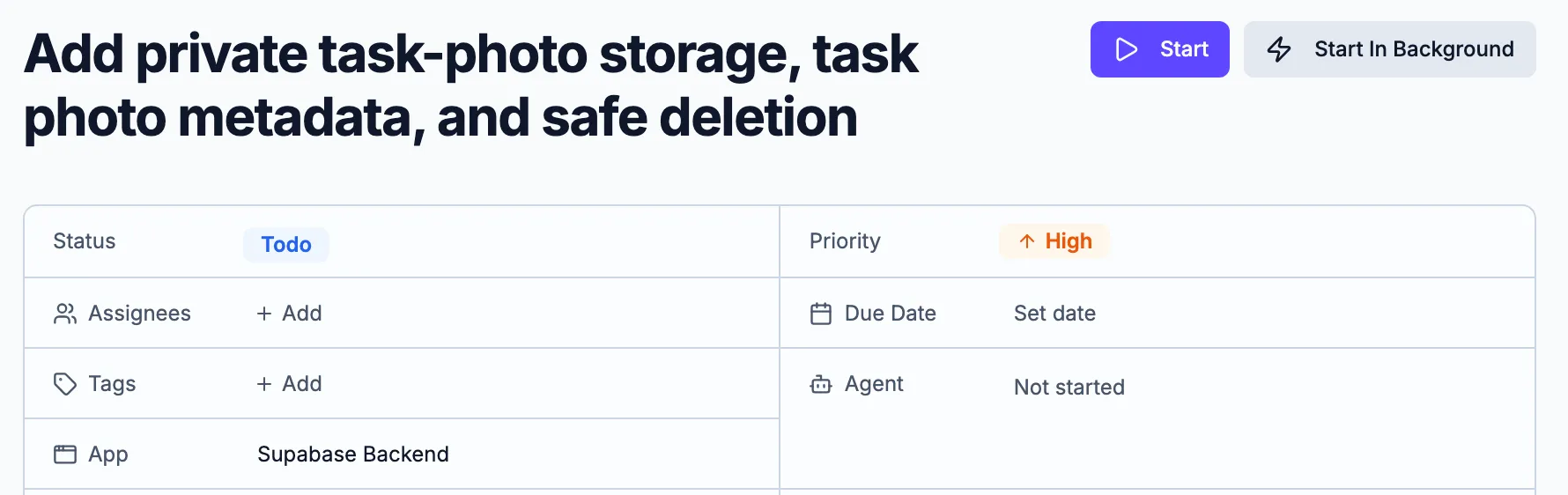
The mobile app’s agent asked the backend for storage. We start the task.
Once the task finishes, the backend should have a new migration with the bucket and its policies. Here’s the core of ours:
insert into storage.buckets (id, name, public, file_size_limit, allowed_mime_types)
values ('task-photos', 'task-photos', false, 5242880,
  array['image/jpeg', 'image/png', 'image/webp']);

alter table public.tasks add column photo_path text default null;

create policy task_photos_select_own on storage.objects
  for select to authenticated
  using (bucket_id = 'task-photos'
    and (storage.foldername(name))[1] = (select auth.uid()::text));
Because public is false, a photo can only be read by a request that passes a policy. The size limit and file types are set on the bucket itself, so a modified app can’t get around them. storage.foldername(name)[1] is the first folder in a file’s path, which is why each user’s photos live under their own ID: a photo at <user id>/<random id>.jpg belongs to that user, and the policy compares the two. The agent’s upload and delete policies run the same check through helper functions, and there’s no update policy, so a stored photo can’t be overwritten.
The task keeps photo_path, never a URL. To show a photo, our app asks for a signed URL, which in our app expires after five minutes, and asks again when it needs a new one. The upload happens first, and photo_path is only saved once the upload succeeds, so a failed upload can’t leave a task pointing at nothing.
Deleting a task and deleting its photo can’t happen in the same database transaction, since the file lives in Storage. The agent handled that with an Edge Function that deletes the photo and the task together, plus a retry record if one half fails. A first version doesn’t need that much, but it’s worth deciding what happens when one half fails, because the thing to avoid is a screen that says the photo is gone while the file is still there.
If a permissions error shows up during uploads, the fix is in the storage policy, not in making the bucket public. A public bucket serves every photo to anyone who has the link, and there’s no taking that back once the links are out.
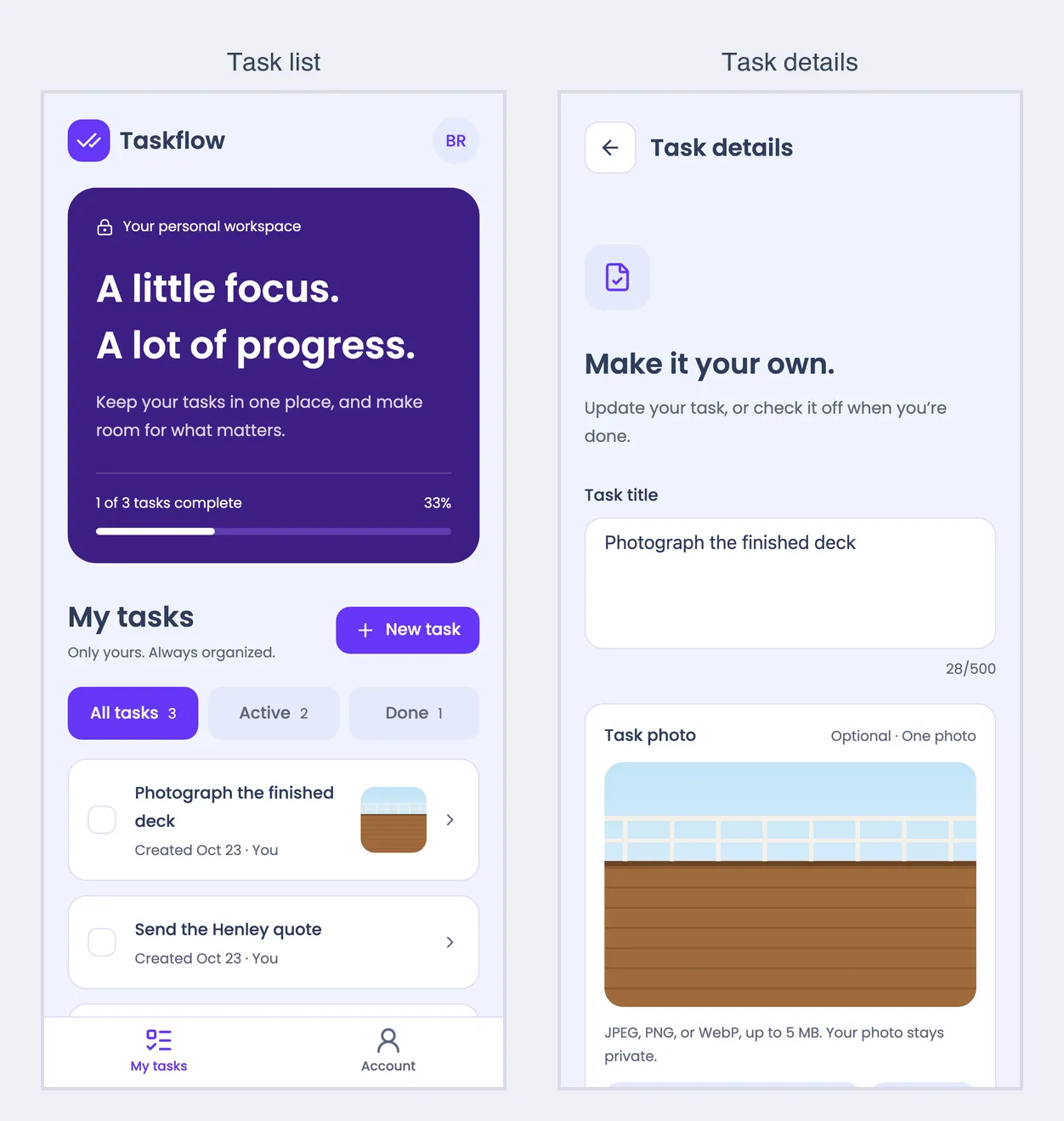
The photo is stored privately and shown through a signed link that expires after five minutes.
Add live updates
Supabase Realtime lets our app know when a signed-in user’s tasks change, and the app reloads them through the same protected query.
Show task changes live. When a task is added, changed, or deleted on another device signed in to the same account, update the list without a refresh. Keep one subscription per list, remove it when the list closes and when someone signs out, and refetch the list when the app comes back to the foreground.
This one needed the backend again. Supabase has two ways to send database changes to an app. Postgres Changes streams rows from the table, but Supabase’s documentation notes that “RLS policies are not applied to DELETE statements,” so a deleted task’s details could reach people who shouldn’t see them. Our agents used Broadcast instead. After every insert, update, or delete, a database trigger sends an empty tasks_changed message on a private topic named after the task’s owner, and our app refetches its list when one arrives, so no task data travels over Realtime at all.
Once both agents are done, you should end up with a policy like this one in the backend’s migration, which lets each user listen only to their own topic:
create policy tasks_broadcast_read_own on realtime.messages
  for select to authenticated
  using (
    extension = 'broadcast'
    and (select realtime.topic()) = 'tasks:' || (select auth.uid())::text
  );
And the app should subscribe something like this, once the session has loaded:
await supabase.realtime.setAuth();
const channel = supabase
  .channel(`tasks:${userId}`, { config: { private: true } })
  .on("broadcast", { event: "tasks_changed" }, () => refetchTasks())
  .subscribe();

// When the list closes or the person signs out:
await supabase.removeChannel(channel);
We still keep the first fetch when the list opens. A subscription only hears about changes from the moment it connects, and a phone that slept for an hour missed whatever happened in between, which is why the prompt asks for a refetch when the app comes back to the foreground.
To try it, open the list in the preview and change a task from another device that’s signed in to the same account. In our test, a task added, checked off, and deleted on the other device each showed up in the open list within a few seconds, without a reload.
Where your keys live
Only two values go into our app. Everything that can get around our rules stays on the backend.
- Never put a secret key or
service_rolekey in the app or in anEXPO_PUBLIC_variable. - Never turn off row level security on a table our app reads, even for a quick test.
- Never make a storage bucket public to fix a permissions error.
How you know it worked
For this part, we used two test accounts and a few direct requests. Here’s what we ran and what came back, so you can check your own app the same way.
- Sign up as account A and add three tasks. Check one off, then reload. All three come back, with the checkmark.
- Sign out, sign up as account B, and open the list. It’s empty.
- As account B, request one of account A’s tasks by its ID, then try to update and delete it. Each request returns zero rows and no error, and account A’s task is unchanged afterwards.
- As account B, insert a task with A’s ID as the owner. It fails with
42501and “new row violates row-level security policy for table “tasks"". - As account A, try to reassign a task to B. It fails with
42501and “permission denied for table tasks”, because users can’t updateowner_id. - With no session at all, list tasks and insert one. Both fail with “permission denied for table tasks”.
- As account A, edit your own task. It works, which shows the rules aren’t simply blocking everything.
- As account A, attach a photo to a task, then replace it. The task shows the new photo, and A’s folder in the bucket holds one file, not two.
- As account B, try to get a signed URL for A’s photo, download it, list A’s folder, and delete it. The first two return
404and “Object not found”, the list comes back empty, and the delete removes nothing. An upload into A’s folder fails with403and “new row violates row-level security policy”, and the photo’s public URL returns400. - Open A’s list on one device and add, check off, and delete a task on another. Each change appears without a reload. As account B, subscribing to A’s topic fails with “Unauthorized: You do not have permissions to read from this Channel topic”.
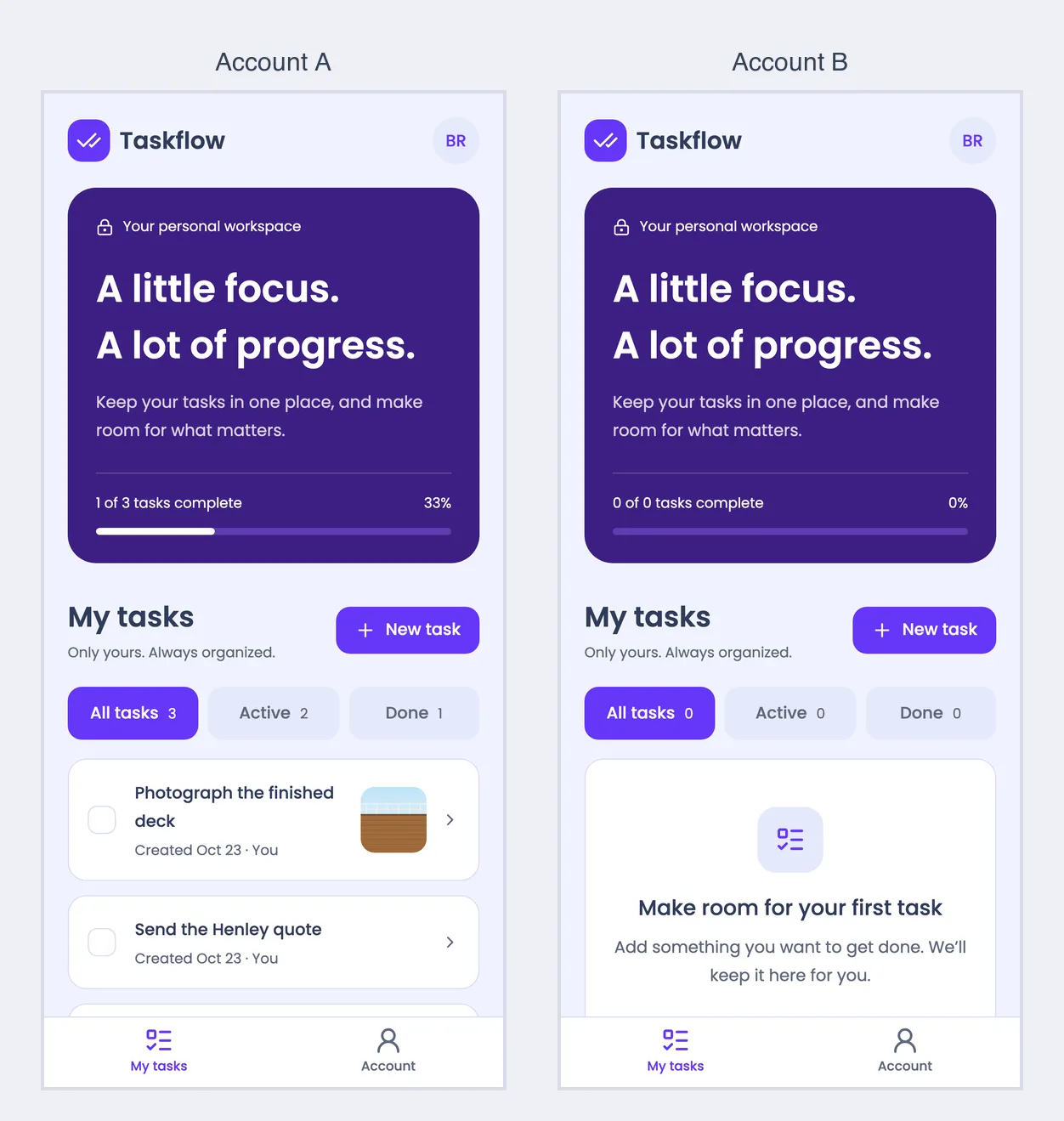
Same backend, two accounts. Account B can’t see, change, or delete account A’s tasks.
Steps 3 and 9 tend to surprise people. The way Supabase works is that a denied read, update, or delete doesn’t come back as a permissions error. It matches zero rows, or for a file, it looks as if the file doesn’t exist. So when you’re testing, check that the target row is still intact, not just that no error came back, because a test that only looks for errors will pass even when a policy is wrong.
After that, it’s worth trying the unhappy paths too: no network, a wrong password, an empty list, and a save while offline. We’re done when each one shows something sensible instead of a blank screen or a spinner that never stops.
Test, production, and switching later
Development, Staging, and Production are separate Supabase projects, each with its own data, users, keys, and settings, and the agent only works in Development.
When our app works in the preview, we publish the Supabase Backend app to Staging or Production from its Publishing page, or with Publish in the Supabase panel. Until then, Staging shows “Created on first publish to Staging.” Publishing applies the migrations and Edge Functions saved in the backend’s files, but it doesn’t copy anything changed by hand in the panel, like auth settings, redirect URLs, or secrets, so those need to be set in each environment.
Then we point our app at the new environment. Until we do, Build Config shows a warning that the variables are missing:
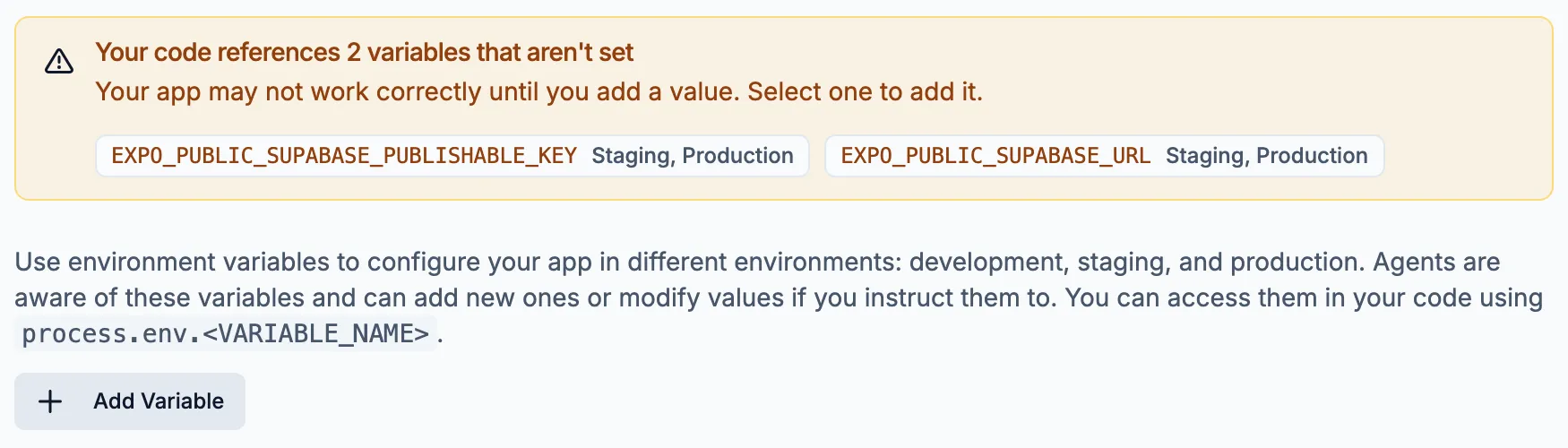
The agent set both values for Development. Staging and Production are ours to add.
- In the Supabase panel, choose the environment, copy its URL from the top of the panel, and copy a key whose type is Publishable from API Keys.
- In the mobile app’s Build Config, under Environment Variables, add
EXPO_PUBLIC_SUPABASE_URLandEXPO_PUBLIC_SUPABASE_PUBLISHABLE_KEYfor that environment only, and keep the Development ones. - Publish the app to that environment again. The values are read when the app is built, so earlier builds keep the old ones.
The test accounts and tasks from the preview won’t exist in Production, so you’ll sign up again there.
If you’d like to move the backend into your own Supabase organization, select Claim this project at the bottom of the panel. Billing and ownership move to you, but only Production moves: the Supabase Backend app is archived, and its Development and Staging environments are deleted along with their data. Claiming can’t be undone, so it’s best to publish anything you want to keep first. Afterwards, you can connect the Supabase MCP with your own account if you want the agent to keep working on it.
Publish
A store build talks to Supabase exactly the way the preview does, so what’s left before release is mostly settings.
Before submitting, we’ll check:
- Auth emails. Supabase’s built-in email service is meant for testing and allows 2 emails per hour, so real sign-ups need custom SMTP, under Authentication, Emails, Custom SMTP. The custom SMTP guide in our docs walks through it.
- Confirm Email and Redirect URLs. These need to be set in Production, since publishing doesn’t copy them, and it’s worth testing a confirmation link on a phone. A link that opens a browser but never comes back to the app isn’t finished yet.
- Account deletion. If our users can create an account in the app, Apple requires a way to delete it from inside the app (App Review Guideline 5.1.1(v)). Deleting a Supabase user needs a secret key, so we’d ask the backend’s agent for an Edge Function that does it for the signed-in user.
- Schema changes after launch. A store release can’t update every phone the day it ships, so new migrations need to stay compatible with the version our users already have installed. Adding columns before removing old ones keeps that safe.
Then we release through Draftbit’s publishing flow.
If you’re still stuck
The list is empty, and there’s no error
If the list comes back empty and there’s no error, row level security is the most likely reason. RLS can be a bit annoying, but that annoyance is also what keeps our users’ data safe. The way Supabase works is that you’ll just get back nothing instead of an error when RLS blocks a read, so it can look like our data is missing when it’s really a security setting. Check that there’s a select policy for authenticated that compares owner_id with auth.uid(), and that the app has finished signing in before it asks for the tasks. You can also ask the Supabase Backend app’s agent to check for you:
The task list comes back empty with no error for a signed-in user. Check the row level security policies on the tasks table and tell me which one is missing or not matching.
Permission denied for table tasks (42501)
This means the role has no grant on the table or column. Requests with no session get it because anon has no grants, and a signed-in user gets it when they try to update a column they aren’t granted, like owner_id.
New row violates row-level security policy for table “tasks” (42501)
An insert or update failed a with check policy, usually because the row’s owner_id isn’t the signed-in user. The fix is to let the database fill in owner_id instead of sending it from the app, which you can ask the mobile app’s agent for:
Stop sending owner_id when creating a task. Let the database fill it in from the signed-in user.
Object not found when loading a photo
Storage answers a denied read the same way it answers a missing file. Check that the path’s first folder is the signed-in user’s ID and that the bucket has a select policy for authenticated. If the photo belongs to someone else, this is the policy doing its job.
New row violates row-level security policy when uploading a photo
No insert policy on storage.objects matches the path. The first folder has to be the uploader’s own user ID, and the file type and size have to fit the bucket’s limits.
Unauthorized: You do not have permissions to read from this Channel topic
The channel is private, and no policy on realtime.messages lets this user read the topic. Check that the topic name uses the signed-in user’s ID, and that the app called supabase.realtime.setAuth() after the session loaded. If it’s the app side, this prompt to the mobile app’s agent should sort it out:
Live updates fail with “You do not have permissions to read from this Channel topic”. Make sure we subscribe to tasks:
as a private channel, and call supabase.realtime.setAuth() after the session loads.
Changes from another device don’t show up
Check that the list subscribes after sign-in, keeps one channel per list, and isn’t removed too early. A phone that was asleep misses messages, so the list also needs to refetch when the app comes back to the foreground.
Your workspace connection isn’t configured for this environment
That’s the message our agent wrote for a missing EXPO_PUBLIC_SUPABASE_URL or EXPO_PUBLIC_SUPABASE_PUBLISHABLE_KEY. Add both in Build Config for that environment, then publish again.
Please wait a little before trying again
Supabase’s built-in email service has hit its limit of 2 emails per hour. Setting up custom SMTP fixes it, or you can leave Confirm Email off while testing.
Signed out after every restart
Either the session isn’t being saved on the phone, or the app chose its screens before the saved session loaded. Check for storage: AsyncStorage and persistSession: true in the client, or ask the mobile app’s agent:
People get signed out every time they close the app. Save the Supabase session on the phone, and wait for the saved session to load before choosing the signed-in or signed-out screens.
The app still shows demo data
The mobile app’s first build finished before the backend did. Ask its agent to connect to the Supabase backend and remove the demo data.
If none of that helps, the support chat in Draftbit is the fastest way to reach us. Tell us which step you’re on and what you saw, and we’ll work through it with you.
Frequently asked questions
Do I need a Supabase account?
No. With a managed backend, the Draftbit team runs the Supabase projects for you. You’d only need your own account to claim the backend, or to connect a project you already have.
Is the publishable key a secret?
No, it’s designed to ship in apps, and it identifies the Supabase project. Row level security and each user’s session decide what they can read. Secret and service_role keys are different and stay on a server, and Supabase’s API keys documentation explains the difference.
Can our users sign in with Google or Apple?
Yes. In the Supabase panel, open Authentication, then Sign in methods, turn on the provider, and enter the credentials from it, like a client ID and secret from Google Cloud, or for Apple, a client ID and a secret key generated from your Apple private key. Then ask the mobile app’s agent to add the sign-in button. The provider also needs our app’s redirect URL, the same way email confirmation links do.
Do we need a development build or Expo Go?
Neither, for anything in this guide. The Supabase client, the session storage, and the photo picker all work in the web preview, in Expo Go, and in a store build, so a development build only comes into it if you add a native module later.
Can a web app in the same project use this backend?
Yes. The Supabase Backend app is shared by every app in the project. A web app reads the same URL and publishable key from its own Build Config, with the VITE_ prefix instead of EXPO_PUBLIC_, for example VITE_SUPABASE_URL.
Where can we see the data and the logs?
In the Supabase panel. Database, then Tables, lets you browse and edit rows or run a SQL query, and Logs shows API, database, authentication, storage, realtime, and Edge Function logs for whichever environment you pick at the top of the panel.
What does the backend cost, and is it backed up?
The built-in Supabase backend is included on every Draftbit plan, including Free, and the panel marks it as free during the beta. Scheduled backups and point-in-time recovery depend on the project’s Supabase plan, and the Backups tab under Database shows what’s available.
What happens if we claim the project later?
Billing and ownership move to your Supabase organization, but only Production moves. The Supabase Backend app is archived, its Development and Staging environments are deleted with their data, and claiming can’t be undone, so publish anything you want to keep first.
Can I connect a Supabase project I already have?
Yes, through the Supabase MCP connection, which gives the agent access to the project while it builds. Our app still needs its own client, keys, and policies, the same as in this guide, and the Supabase MCP page covers the setup.
Can I add shared team lists later?
Yes. We’d add a workspace table and a membership table, then change the policies to check membership. It’s important to keep the ownership checks in place while you do it, and to test a removed member and a pending invitation, not just an active member, before shipping shared data.
Sources
We built this guide from a walkthrough in Draftbit with a managed Supabase backend, two test accounts, and direct API requests in October 2026, along with these sources:
- Supabase: Row level security, Expo React Native tutorial, API keys, Storage access control, and Realtime Postgres changes
- Apple: App Review Guidelines
- Draftbit help: Supabase and custom SMTP for auth emails
More about Supabase in Draftbit
Make this your next app
Start with the first prompt, connect your own test account, and work through the guide one step at a time.