

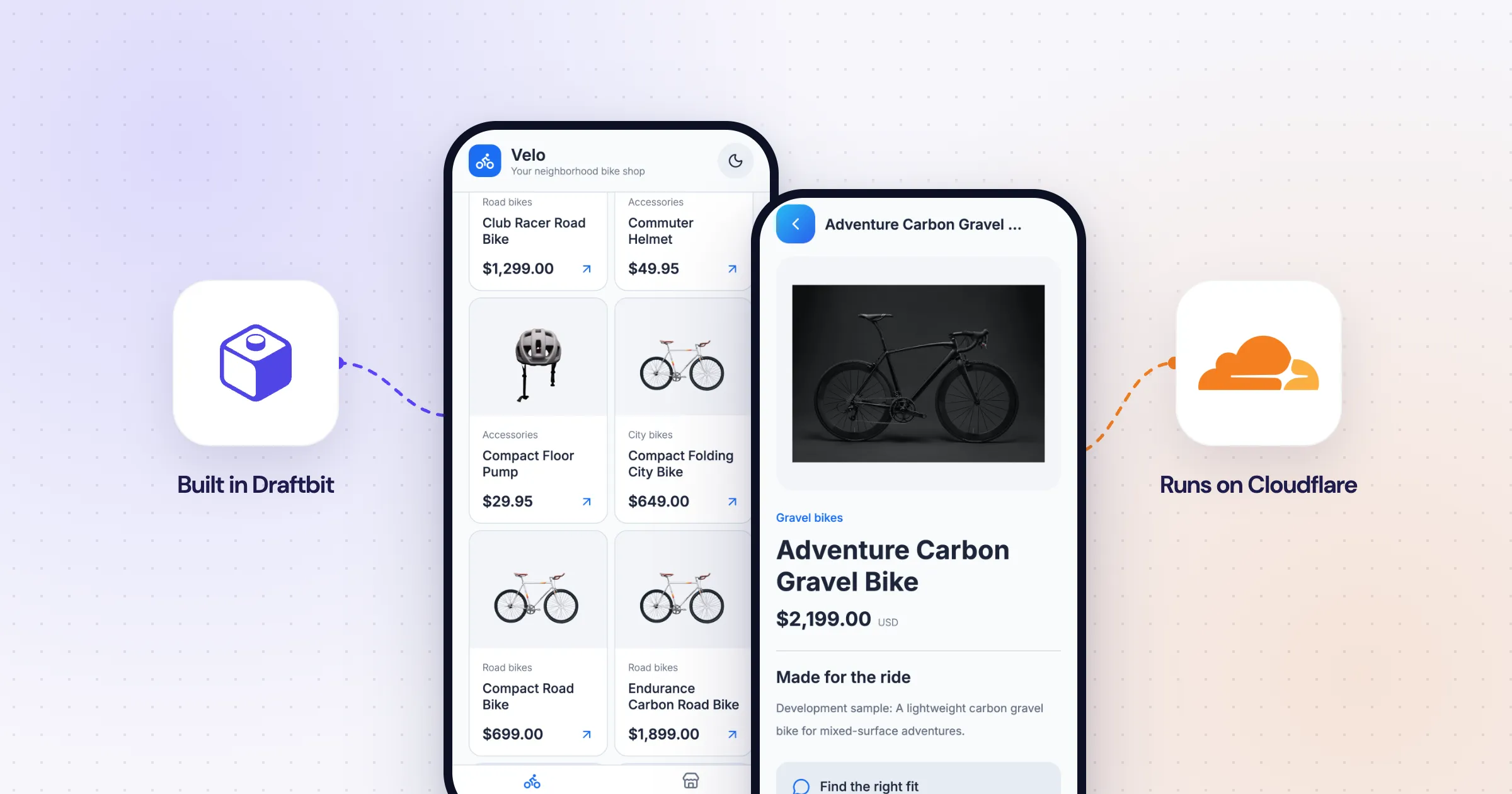
What we’ll build together
Terms we’ll use
- We: you and the Draftbit team, building this app together.
- Our app: the bike shop catalog we’re building in this guide.
- Our users: the people who’ll browse the catalog in our app.
- The agent: the AI agent in Draftbit that writes our app’s code, API routes, and database changes.
If you want a real API and database behind your Draftbit app without setting anything up in Cloudflare yourself, this guide walks through it together. You don’t need to have used Cloudflare, Hono, or D1 before, and you won’t need a Cloudflare account. We’ll explain each piece as we go.
We’re going to build a product catalog for a small bike shop. Our users will be able to browse bikes and accessories, search them, filter by category, and open a product page, all without signing in. All of the code that Draftbit produces for mobile apps is based on React Native and Expo, and our backend is a Hono API running on Cloudflare Workers, with its data in Cloudflare’s D1 database.
For the purposes of this guide, we’re going to keep the catalog public and keep every way of changing it on the server. That sounds simple, but it’s the part most worth getting right, because the way API keys work in a Draftbit API Backend makes it easy to ship a key in the app that can do far more than read. We ran into exactly that during our walkthrough, so we’ll show what happened and how we fixed it.
Choose your setup
There are two ways to run a Cloudflare backend behind a Draftbit app. For a new app, we’d use the API Backend that Draftbit manages, which needs no Cloudflare account at all.
| Draftbit-managed API Backend (recommended) | Your own Cloudflare account | |
|---|---|---|
| How you add it | Choose D1 under Database when you create the project | Connect the Cloudflare MCP from Project Integrations |
| Who owns the account | The Draftbit team runs the Workers and D1 databases | You do |
| What the agent can do | Write routes, migrations, and tests, seed development data, and run requests | What the Cloudflare MCP connection allows |
| Test and live | Development, Staging, and Production, each with its own D1 database | Whatever you’ve set up in Cloudflare |
| Where you change settings | The API console, the D1 workspace, and Publishing in Draftbit | The Cloudflare dashboard |
Bringing your own account makes sense when your Workers and data already live in Cloudflare. Either way, our app talks to the API over HTTP and never touches the database directly, which is what the rest of this guide builds.
Everything here works in the web preview, in Expo Go, and in a store build, since the app only uses fetch, so we won’t need a development build.
Before you start
You’ll need:
- A Draftbit account.
- A rough idea of the data our app will show. For this guide, that’s one table of products with a name, description, category, price, currency, image, and an active flag.
We tested this guide with Expo SDK 55, React Native 0.83, Hono 4.13, @hono/zod-openapi 1.5, and Wrangler 4.120. If a screen here doesn’t match what you see, the API Backends help page has the current layout.
Create the app and its API Backend
When we create the project, we’ll pick D1 as the database, and our project gets an API Backend next to the mobile app, with its own agent, already connected to the app.
From your dashboard, choose Create New Project, then Build. Select Mobile App, and under Database select D1.
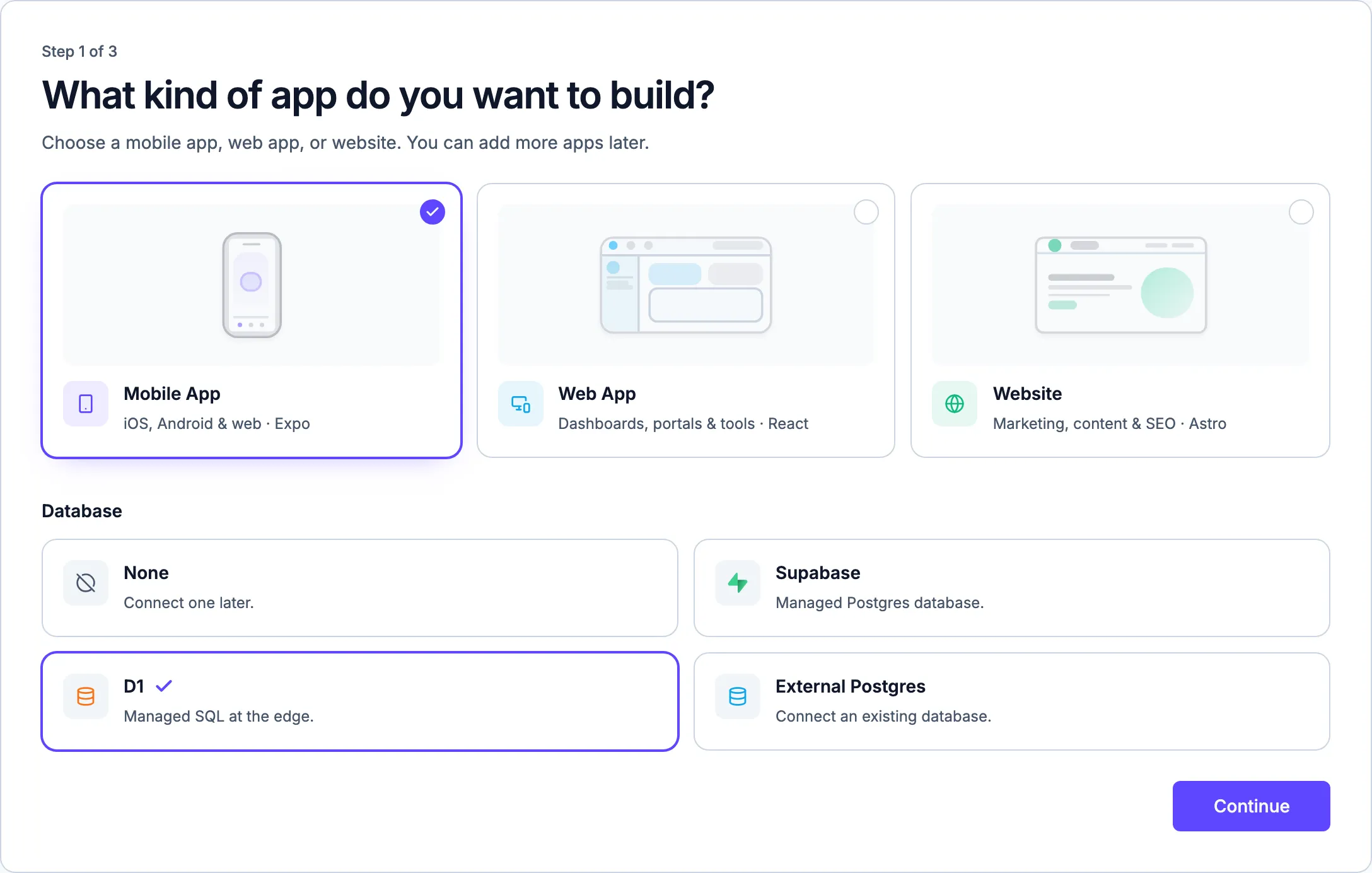
Step 1 of the project wizard. D1 is the managed SQL option.
On the next step, we’ll choose a starting template. We used Velo, a bike shop app with a category-filtered product grid and product pages, so the agent could spend its time on the API instead of the layout. Then we describe the app:
Turn this template into a product catalog for a small bike shop. A product has a name, description, category, price, currency, an image URL, and an active flag. Anyone can browse active products, search them, and filter by category without signing in. Keep the API endpoints for adding and editing products protected, so they can’t be called from the app. Read real data from the D1 database instead of sample records, and include loading, empty, and retry states.
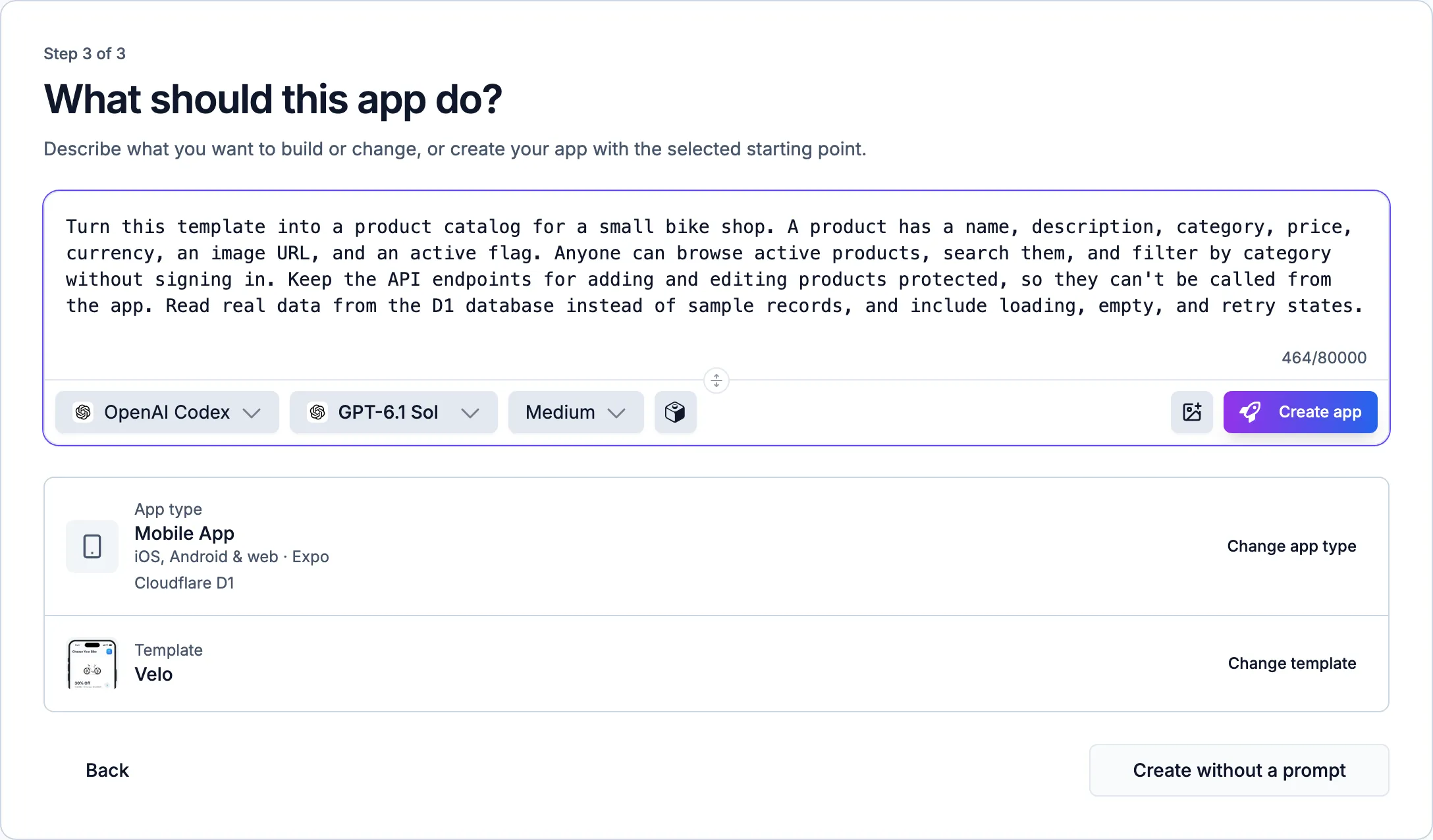
The last step shows what we picked. Selecting Create app starts both agents.
Our project now has two apps: the mobile app and API Backend, which the project page describes as “Shared Hono API serving every app in this project.” Both start building at the same time. In our run, the API Backend finished in about six minutes with eight endpoints and 36 passing tests, while the mobile app used clearly labeled demo products in the meantime. Once the backend was done, its summary was passed to the mobile app’s agent automatically, and that agent switched to the real API without another prompt from us.
Define the catalog in D1
The API Backend’s agent describes the database with Drizzle, and its changes are saved as migrations in the drizzle/ folder of the backend’s files, which get applied to Staging and Production when we publish.
Our first prompt already described a product, so we didn’t need a separate prompt for the table. If you’re adding a table to an API Backend that already exists, a prompt like this one gets you the same thing:
Add a products table with a name, description, category, price in cents, currency, image URL, an active flag, and created and updated dates. Store prices as whole cents, and only allow the categories and currencies the app uses.
You should end up with a migration along these lines. This is the core of what ours wrote:
CREATE TABLE `products` (
  `id` text PRIMARY KEY NOT NULL,
  `name` text NOT NULL,
  `description` text NOT NULL,
  `category` text NOT NULL,
  `price_cents` integer NOT NULL,
  `currency` text NOT NULL,
  `image_url` text NOT NULL,
  `active` integer DEFAULT true NOT NULL,
  `created_at` text NOT NULL,
  `updated_at` text NOT NULL,
  CONSTRAINT "products_price_check" CHECK("products"."price_cents" BETWEEN 0 AND 999999999),
  CONSTRAINT "products_active_check" CHECK("products"."active" IN (0, 1)),
  CONSTRAINT "products_currency_check" CHECK("products"."currency" IN ('USD', 'EUR', 'GBP', 'CAD', 'AUD', 'NZD', 'CHF'))
);

CREATE INDEX `products_active_category_name_idx` ON `products` (`active`, `category`, `name`, `id`);
Prices are whole cents, which avoids the rounding problems that come with storing money as decimals. The active flag lets the shop hide a product without deleting it, and the checks mean a bad value gets rejected by the database itself, not just by the app. When we later asked for gravel, city, and accessories categories, the agent added a second migration rather than editing the first one, which is what keeps every environment’s database in step.
Add sample data to Development only
Next, we need something to look at. The important part of this prompt is where the data goes:
Add 24 sample products to the development database only, not in a migration, so Staging and Production start empty. Spread them across four categories (road, gravel, city, and accessories), and include one inactive product, one with a very long name, and one priced at zero. Leave the image URLs empty.
If sample products went into a migration, publishing would copy them into Staging and Production too, and the shop’s real catalog would start with our test bikes in it. In our run, the agent added the 24 products to Development, and the public product list returned the 23 active ones.
Keep reads public and admin writes on the server
This is the step that matters most in this guide. Every route in an API Backend needs an API key by default, and when our app was connected to the backend, two variables were added to the app’s Build Config for Development: EXPO_PUBLIC_API_URL and EXPO_PUBLIC_API_KEY. The way API keys work is that one key unlocks every protected route, and anything in an EXPO_PUBLIC_ variable is built into the app, where anyone who has the app can read it.
In our run, the mobile app’s agent caught this on its own. It found that the key in the app also opened the backend’s admin routes, removed the key from the app’s Build Config, and filed a task on the API Backend describing the problem. If you see EXPO_PUBLIC_API_KEY in your app, assume it’s public, because it is.
Since our catalog is public anyway, the fix is to make the read routes need no key at all, and put the admin routes behind a second key that only ever lives on the server:
Make GET /v1/products, GET /v1/products/{id}, and GET /v1/categories public, with no API key. Everything under /v1/admin should also require a separate server-only admin key, stored as a secret in this backend’s Build Config, so a key from the mobile app can never reach the admin routes.
You should end up with an API key check along these lines. This is the core of what our agent wrote:
export const apiKeyAuth = (): MiddlewareHandler<AppEnv> => async (c, next) => {
  const publicCatalog =
    c.req.method === "GET" &&
    (c.req.path === "/v1/products" ||
      c.req.path === "/v1/categories" ||
      /^\/v1\/products\/[^/]+$/.test(c.req.path));
  if (c.req.method === "OPTIONS" || PUBLIC_PATHS.has(c.req.path) || publicCatalog) {
    return next();
  }

  // Every other route needs one of the platform's API keys (DRAFTBIT_API_KEYS).
  // ...

  // The admin routes also need a separate, server-only key.
  if (c.req.path === "/v1/admin" || c.req.path.startsWith("/v1/admin/")) {
    const adminCandidate = c.req.header("x-admin-api-key");
    const adminKeys = (c.env.ADMIN_API_KEYS ?? "")
      .split(",")
      .map((key) => key.trim())
      .filter(Boolean);
    if (!adminCandidate || !adminKeys.some((key) => constantTimeEqual(key, adminCandidate))) {
      return c.json({ error: "invalid_admin_key" }, 401);
    }
  }

  return next();
};
The public routes are matched exactly, by method and path, so a POST to /v1/products or a lookalike path can’t slip through. The admin check covers the whole /v1/admin namespace, including routes the agent adds later. ADMIN_API_KEYS is stored as a backend variable in Build Config, and for an API Backend every variable is a secret that only the API can read at runtime.
Try it in the API console
The API console is where we can check the backend without the app. Open the API Backend, and the console lists every endpoint the agent has declared, grouped by tag.
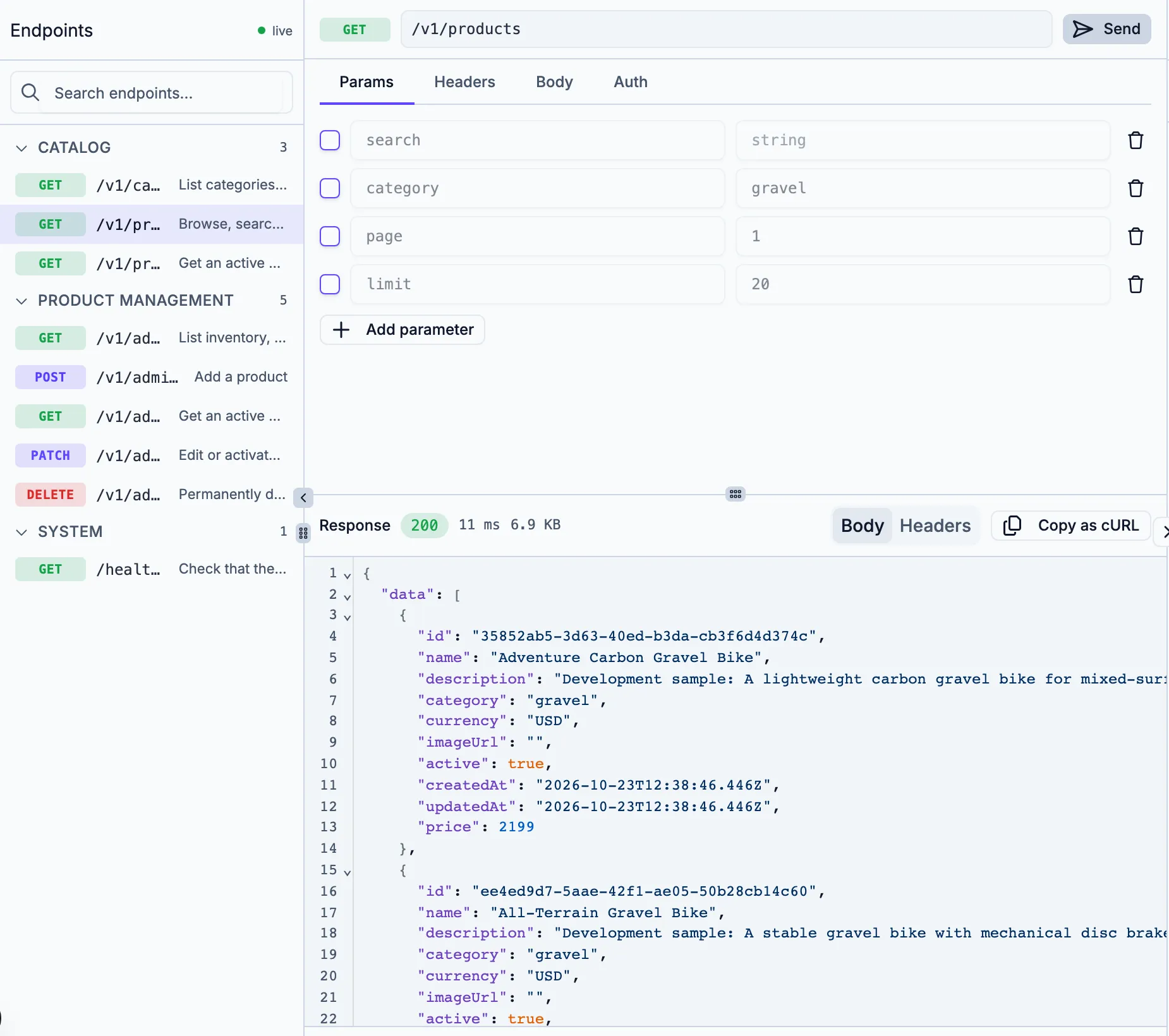
A public catalog request in the API console, answered in 11 ms.
Select an endpoint, fill in any parameters, and select Send. The console attaches the development API key for you, and the Auth tab has Send without API key for checking that a route rejects requests without one. Requests always go to the development server, and Request Logs at the bottom shows each request and the logs it produced.
Connect the mobile catalog
Once the backend’s routes are public, the app doesn’t need a key at all. If your app’s agent hasn’t already connected the catalog, this prompt covers it:
The backend’s catalog endpoints are public now, so the app doesn’t need an API key at all. Connect the catalog to the API at EXPO_PUBLIC_API_URL without sending a key, and when a product has no image URL, show one of the template’s own bike images for its category.
You should end up with a small API helper like this one, a trimmed version of what our agent wrote:
async function readApi(path: string, signal?: AbortSignal): Promise<unknown> {
  const baseUrl = process.env.EXPO_PUBLIC_API_URL?.trim().replace(/\/+$/, "");
  if (!baseUrl) throw new CatalogApiError(0);
  const controller = new AbortController();
  const timeout = setTimeout(() => controller.abort(), 15000);
  try {
    const response = await fetch(`${baseUrl}${path}`, {
      method: "GET",
      headers: { Accept: "application/json" },
      signal: controller.signal,
    });
    if (!response.ok) throw new CatalogApiError(response.status);
    return (await response.json()) as unknown;
  } finally {
    clearTimeout(timeout);
  }
}
It only sends GET requests and no key, it gives up after 15 seconds so a slow network shows a retry instead of a spinner that never ends, and the screens check the shape of each product before showing it.
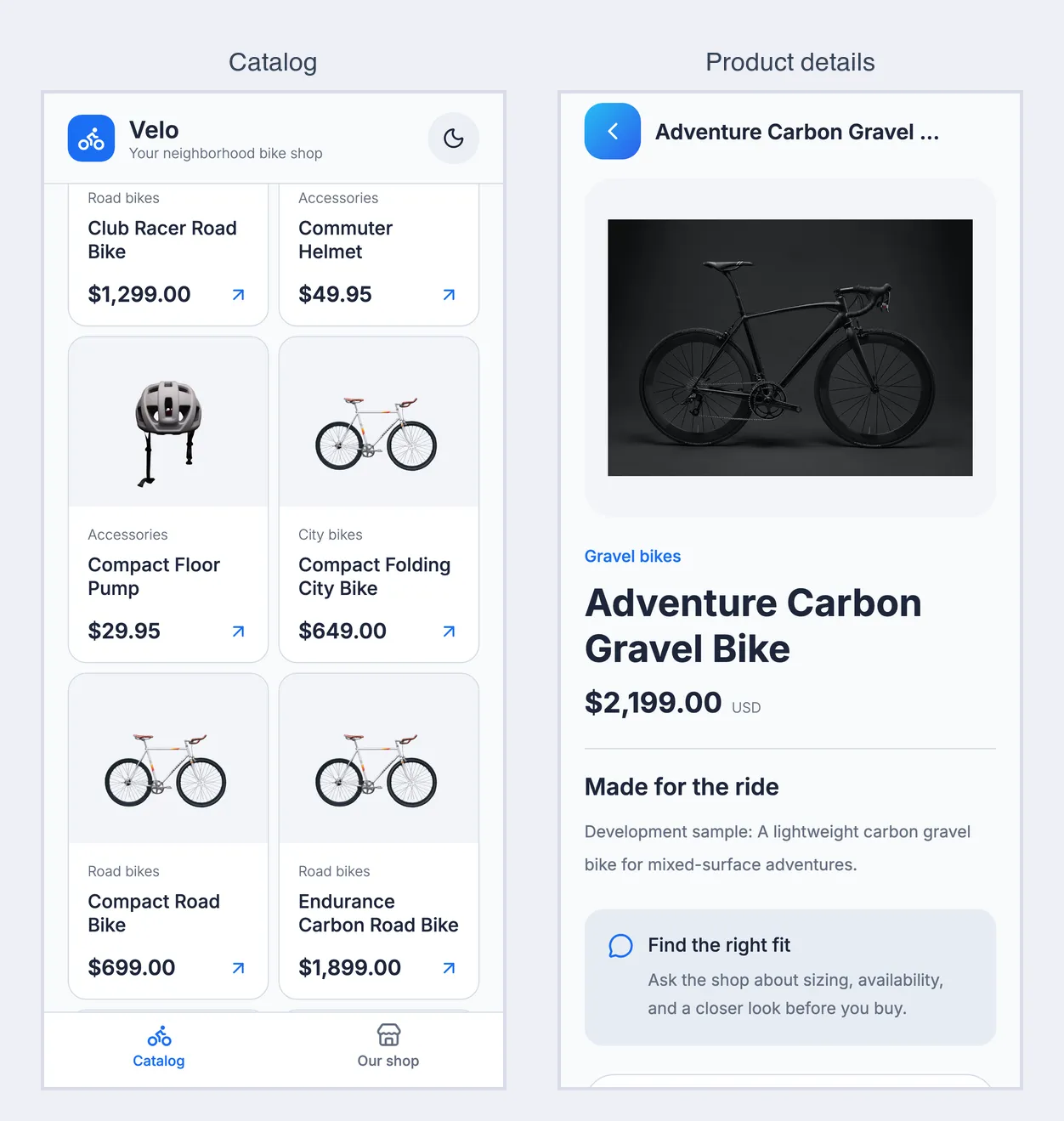
Our app reading the catalog from D1 through the public API.
Where our keys live
Only one value goes into our app, and it isn’t a secret. Everything that can change the catalog stays on the server.
- Never put an API key that can reach protected routes in an
EXPO_PUBLIC_variable. - Never let the mobile app’s key unlock admin routes, even in development, since a development key can end up in a build.
- Never connect the app to D1 directly. It goes through the API, so the API decides what anyone can see or change.
How you know it worked
For this part, we sent requests from the API console and from the command line, with and without each key. Here’s what we ran and what came back, so you can check your own backend the same way.
- With no key at all, list products. It returns
200with 23 products, because the inactive one is hidden. - With no key, request one product by its ID and list the categories. Both return
200. - With the key from the app, or any other key that isn’t an admin key, try all five admin operations: list, read, create, edit, and delete. Each one returns
401with{"error": "invalid_admin_key"}. - With both the platform key and the admin key, list the admin products. It returns
200, which shows the rules aren’t simply blocking everything. - Open the app, filter by Gravel, and open a product. The grid and the product page show the products from D1, not demo data.
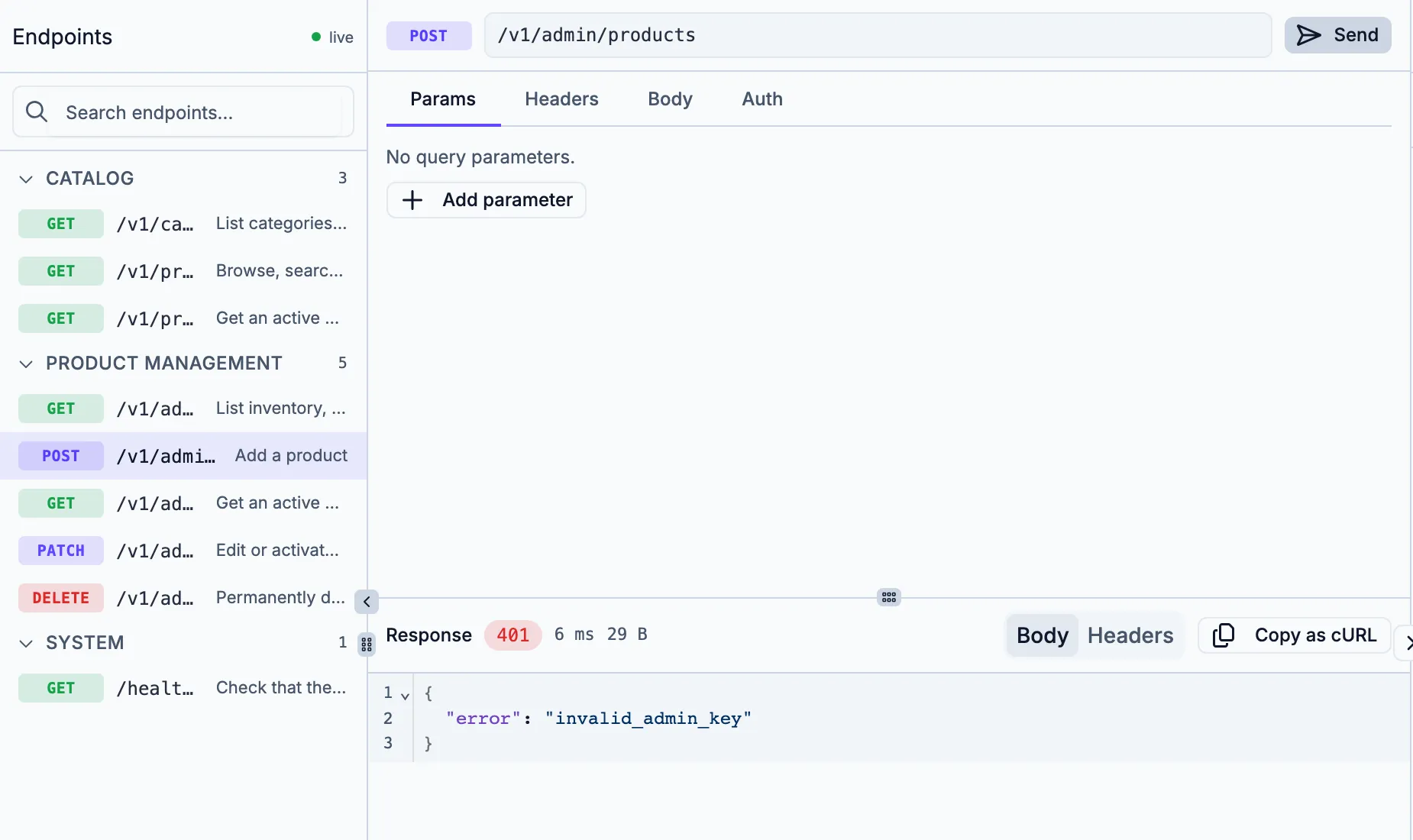
An admin write sent with the development key, refused because it has no admin key.
After that, it’s worth trying the unhappy paths too: no network, an empty category, and a search with no results. We’re done when each one shows something sensible instead of a blank screen or a spinner that never stops.
The agent also wrote tests for these cases, and in our run all 57 backend tests passed after the last change. Running the requests yourself is still worth it, because a test only checks what someone thought to test.
Test, production, and switching later
Development, Staging, and Production each have their own D1 database, their own API URL, and their own API keys. The agent and the API console work in Development, and Staging and Production are created the first time we publish to them.
To publish, select Publish in the top bar, then Publish in the API row, name the version, and choose Staging or Production. Publishing runs our migrations against that environment’s database first, so the schema arrives before the code that needs it. The sample products we added in Development don’t come along, since they aren’t in a migration.
Then we point our app at the published API:
- On the API Backend’s Publishing page, open the API tab and copy the environment’s URL.
- In the mobile app’s Build Config, under Environment Variables, add
EXPO_PUBLIC_API_URLfor that environment only, and keep the Development one. Since our catalog routes are public, the app doesn’t need anEXPO_PUBLIC_API_KEYin any environment. - In the API Backend’s Build Config, add
ADMIN_API_KEYSfor that environment with its own new value, so a leaked development admin key can’t touch production. - Publish the app to that environment again. The values are read when the app is built, so earlier builds keep the old ones.
To look at the data itself, open Manage D1 on the API Backend’s card on the project page. The Tables and SQL sections show each environment’s database, and running SQL against Production asks you to type PRODUCTION first. In our run, the Development database in that workspace stayed empty while the API console showed our 24 sample products, because the development server keeps its own local copy of D1 while you build (Cloudflare’s local development docs explain how that works). So for development data, the API console is the place to check, and the D1 workspace is most useful for Staging and Production.
Publish
A store build talks to the API exactly the way the preview does, so what’s left before release is mostly settings.
Before submitting, we’ll check:
- The API URL. The production build needs the production
EXPO_PUBLIC_API_URL, and nothing else from the backend. - The admin key. Production has its own
ADMIN_API_KEYSvalue, and the only tools that know it are ones the shop trusts, like an admin web app or a script on someone’s laptop. - CORS. Web builds and the browser preview need the API to allow their origins, but native apps don’t go through CORS at all, so it’s never a substitute for the key checks on the server.
- Schema changes after launch. A store release can’t update every phone the day it ships, so new migrations need to stay compatible with the version our users already have installed. Adding columns before removing old ones keeps that safe.
If you’d like the API on your own domain, like api.yourshop.com, the API tab has Add custom domain for Staging and Production on the paid plans. Then we release the app through Draftbit’s publishing flow.
If you’re still stuck
invalid_admin_key (401)
The request reached an admin route without a matching x-admin-api-key. That’s the response the app should always get. If a trusted tool gets it, check that ADMIN_API_KEYS is set in the API Backend’s Build Config for that environment, and that the tool sends the admin key in x-admin-api-key along with a platform key.
invalid_api_key (401)
A protected route was called without a valid platform API key in x-api-key or Authorization: Bearer. If this happens on a catalog route, the route isn’t on the public list. You can ask the API Backend’s agent:
GET /v1/products returns invalid_api_key without a key. Make the catalog GET routes public again, and keep every other route protected.
api_not_configured (503)
The backend has no platform API keys for this environment, so it can’t check protected routes yet. Publishing creates a key for Staging and Production if they don’t have one, so publish again, then check the API tab under Publishing.
Catalog API configuration is missing
That’s the message our app’s agent wrote for a missing EXPO_PUBLIC_API_URL. Add it in the mobile app’s Build Config for that environment, then publish the app again.
The admin routes work with the app’s key
The backend isn’t checking a separate admin key, so the key in the app can change the catalog. Remove EXPO_PUBLIC_API_KEY from the app’s Build Config, then send the API Backend’s agent the prompt from Keep reads public and admin writes on the server.
staging D1 target is not ready
The staging database couldn’t be created or reached during a publish. On the API Backend’s Database tab, pick Staging, select Retry provisioning if it’s there, then publish again. Production shows the same message with “production” in it.
The app still shows demo data
The mobile app’s first build finished before the backend did. Ask its agent to connect to the API Backend and remove the demo data.
If none of that helps, the support chat in Draftbit is the fastest way to reach us. Tell us which step you’re on and what you saw, and we’ll work through it with you.
Frequently asked questions
Do I need my own Cloudflare account?
No. With a Draftbit-managed API Backend, the Draftbit team runs the Workers and D1 databases for you. You’d only need your own account to use your own Workers through the Cloudflare MCP.
Can our app connect to D1 directly?
No. D1 is only reachable from the Worker that has its binding, so our app calls the API, and the API decides what to read or change. That’s also what keeps the database’s contents behind the rules we set.
Is the API URL a secret?
No. Anyone who has the app can find it, the same as any website’s address. What keeps the catalog safe is that the public routes only read active products, and every route that changes anything needs a key the app never has.
What if the catalog should be private?
Then the app needs signed-in users and the API needs to check each request against them, instead of a shared key. Clerk can handle the sign-in side, and the API checks each signed-in session on protected requests.
Can a web app in the same project use this API?
Yes. An API Backend is shared by every app in the project, and connecting a web app adds VITE_API_URL the same way. The same rule applies there: a key in a VITE_ variable is public, so keep admin routes behind a server-only key.
Can we use Postgres instead of D1?
Yes. When you create the API Backend, you can choose Supabase or External Postgres instead of D1. Once a database has data in it, you can’t switch it to a different provider automatically, so it’s worth deciding before you launch.
Sources
We built this guide from a walkthrough in Draftbit with a managed API Backend and D1 database in October 2026, sending requests with and without each key, along with these sources:
- Cloudflare: D1, D1 local development, and Workers limits
- Hono: documentation
- Drizzle: Drizzle with D1
- Draftbit help: API Backends and Build Config
More about Cloudflare in Draftbit
Make this your next app
Start with the first prompt, connect your own test account, and work through the guide one step at a time.