

Product update
See your next screen before it's built, and ship fixes without a store review
 Brian Luerssen
Hey everyone, it's been three weeks since our last update, and there's a lot to catch up on, from how you start a screen to how you get changes to people who already have your app.
TL;DR: In Draftbit, you can now:
- Ask the agent for design mockups and pick one before it changes your app
- Send updates to your published iOS and Android apps without a store review
- Set up the App Store and Google Play step by step, with checks before you publish
- Edit the apps you bring in the Visual Editor, including React Native styles
- Let the agent look at your preview, and at your screen when you allow it
- Find settings, integrations, and history in one place each
Compare mockups before the agent builds
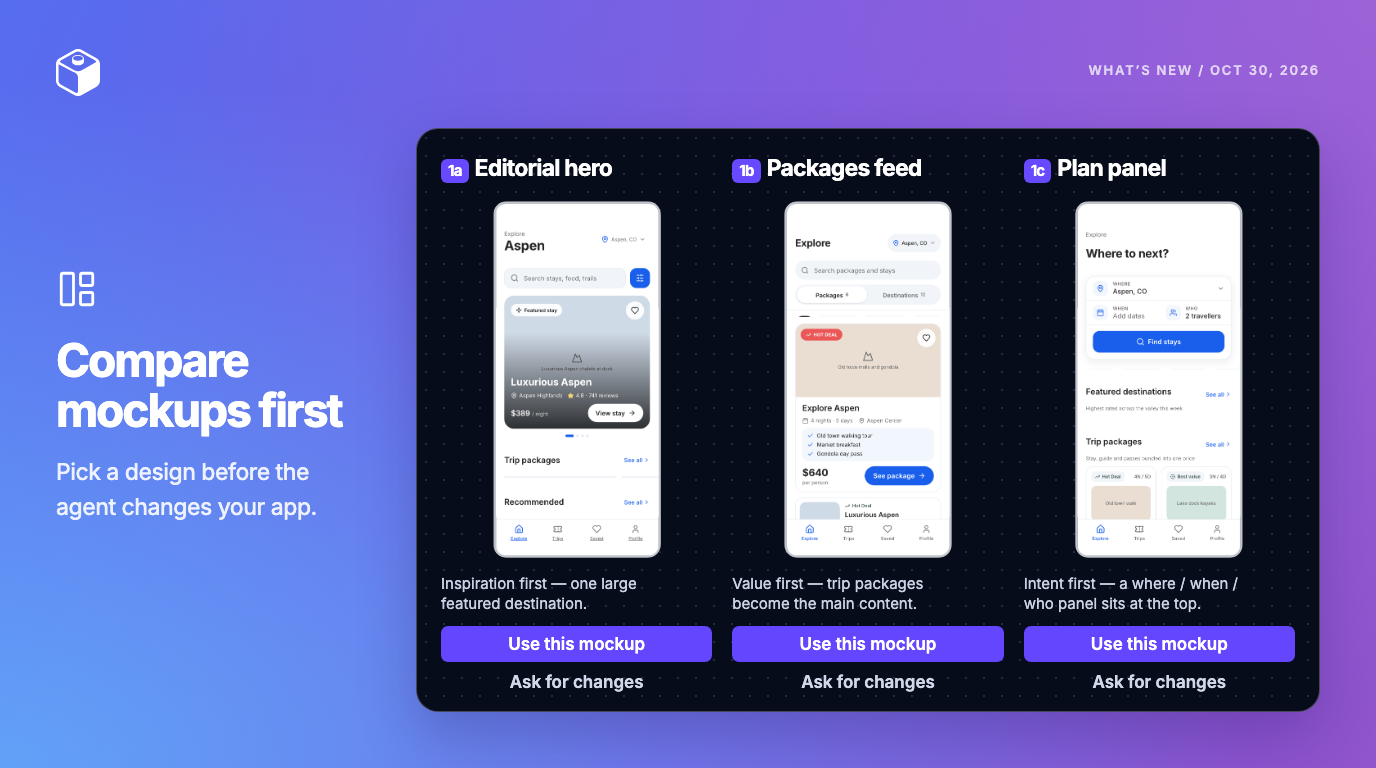
When you ask for a new screen, it's hard to know what the agent has in mind until it has already changed your app. Now you can ask for mockups first. The agent designs a few different takes on what you described, each labeled with what it tries and what it gives up, and you compare them side by side before anything in your app changes.
Ask in chat, for example "Show me some designs before we begin." The Mockups view opens in the left sidebar while the agent works, and a Mockups ready card appears in the chat when it's done. You can tap through each option or switch devices, then click Use this mockup on the one you like, and the agent builds it with your app's own components and theme. If none of them are quite right, click Ask for changes. The mockups guide has the details.
Mockups work for mobile apps, web apps, and websites, and use credits like any other message.
Send updates straight to your published app
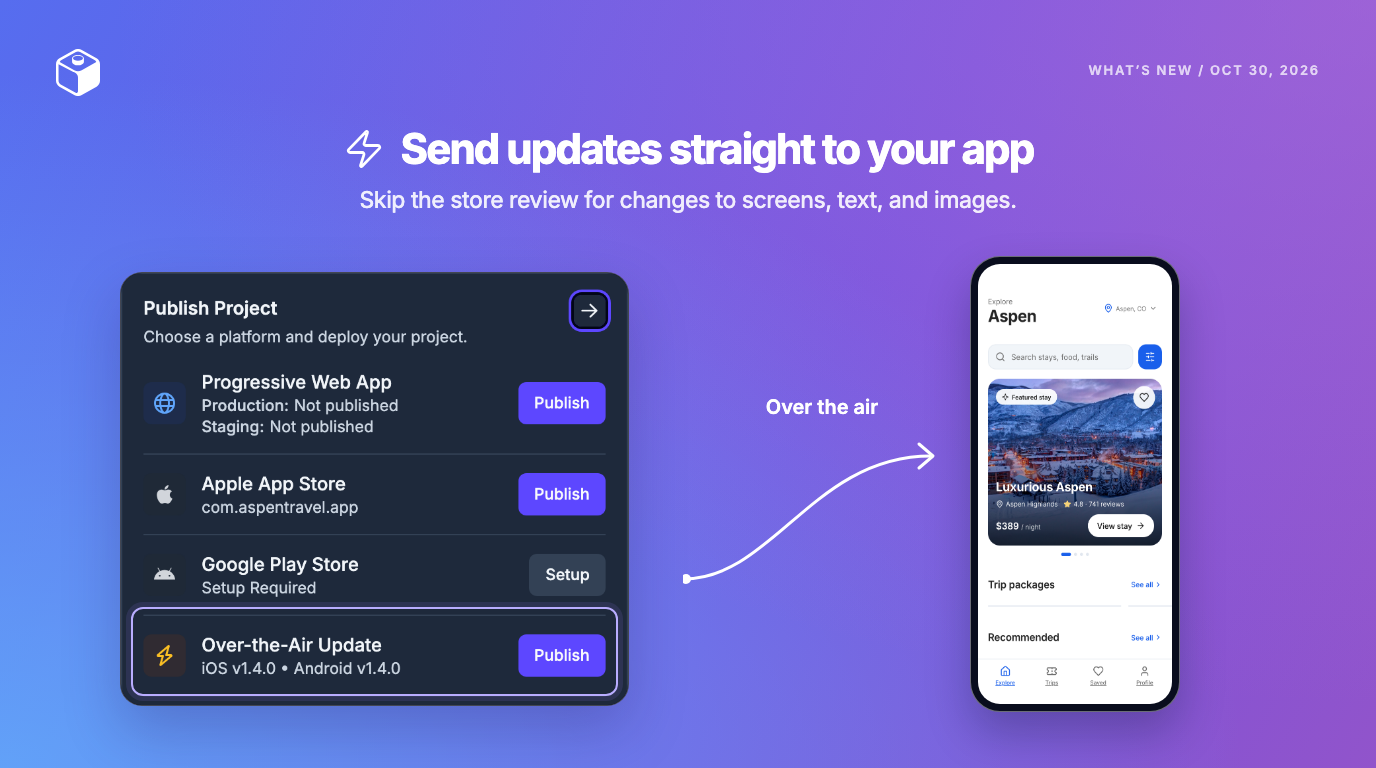
Once your app is in the stores, even a one-line fix has meant a new build and another wait for review. Now you can send an over-the-air update instead. It replaces your app's screens, logic, text, and images, and people who already installed your app get it the next time they restart it. Changes to native code or app settings, like a new package or a new icon, still need a store build.
To turn it on, open Publishing, go to Publish Destinations, and select Over-the-Air Updates. Then publish a new store build, since only builds published after that can receive updates. From then on, whenever you have changes to send, open Publish and choose Over-the-Air Update. Updates don't use credits. The over-the-air updates guide walks through each step.
Get your app into the stores with fewer surprises
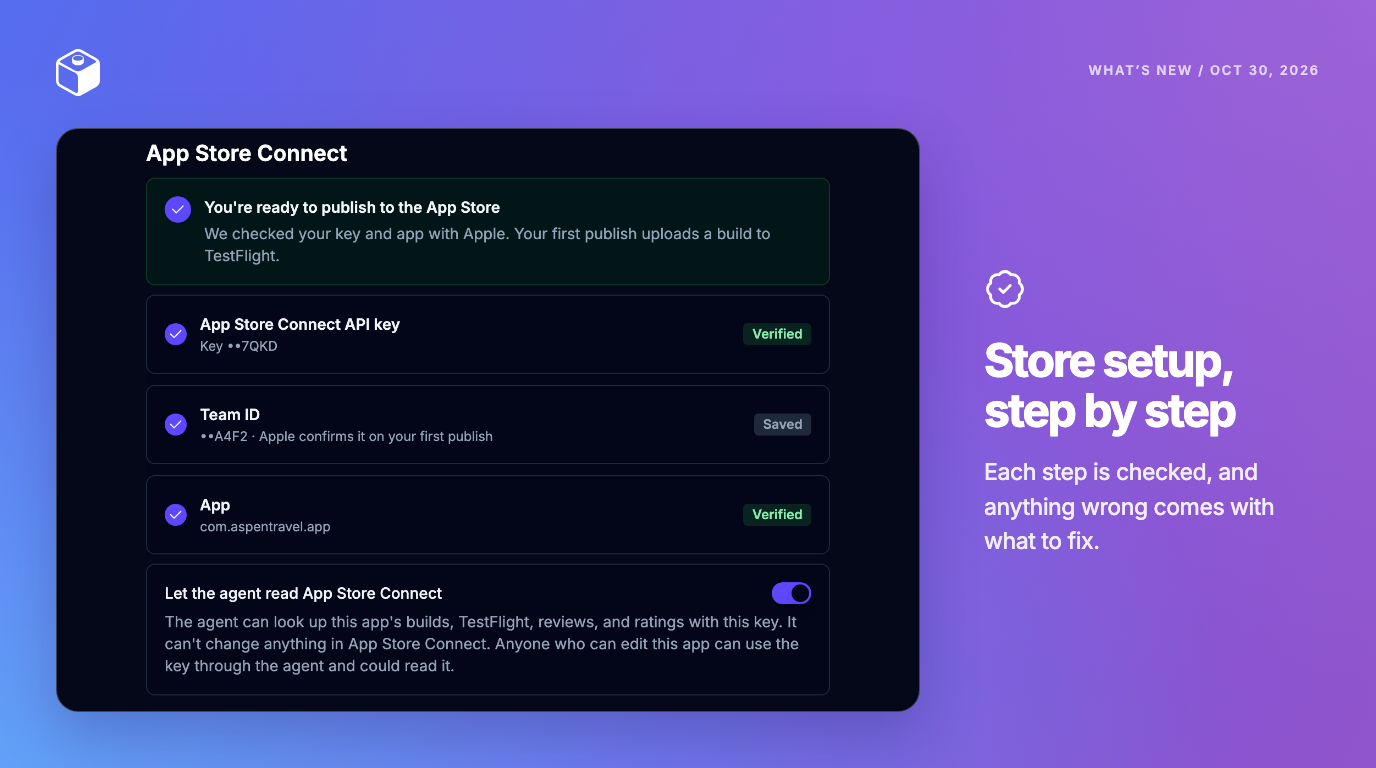
Setting up App Store Connect and Google Play takes a lot of small steps, and a missed one used to show up only after a build failed. We've rebuilt publishing so you find out sooner and know what to fix.
- Set up the stores step by step. The App Store Connect and Google Play setup on the Publish Destinations tab now goes one step at a time and checks each one. When something's wrong, it says what to fix and links to where you fix it.
- See problems before you publish. The publish dialog runs the same checks, and it tells you when variables your code uses have no value yet, which you can fill in from Environment Variables in Settings.
- Publish an earlier version from the Versions tab with Publish this version.
- Save and publish in one step with Save & Publish in the Save Changes dialog.
The iOS publishing guide covers each step of the setup.
Edit the apps you bring visually
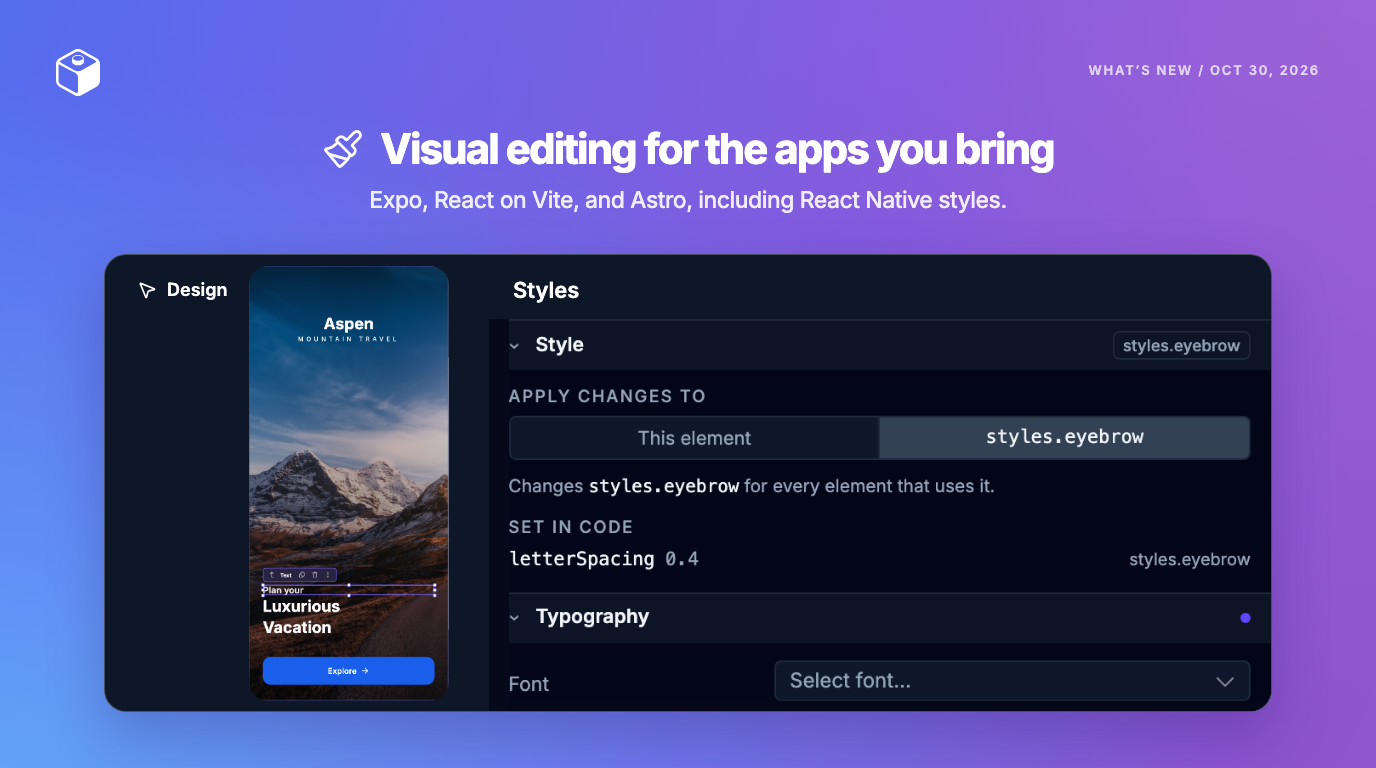
If you imported an app or connected its repository, you've mostly been working with it through chat and code. Now Expo apps, React apps on Vite, and Astro apps you bring get the Visual Editor too. If an app doesn't have the setup yet, click Visual Editing Unavailable at the top of the builder, then Ask Agent to Fix. That setup only works inside Draftbit, so once it's saved, the project won't build anywhere else, like in CI or on your own host. The visual editing guide explains what changes and how to undo it.
The Styles tab and Component Tree also work with more of the code you already have:
- Edit React Native styles. The Styles tab now edits inline
styleprops andStyleSheet.createentries, and you choose whether a change applies to This element or the shared style. - Edit the rest with AI. Styles the panel can't change, like a theme object, are listed with where they come from, and Edit with AI starts a thread with the prompt filled in. Apps from Draftbit Classic get Migrate styles with AI, and apps on Tailwind v4 get the full Styles tab.
- Wrap, unwrap, and edit lists. Right-click a row in the Component Tree for Wrap in… or Unwrap, and select a list to see where its data comes from in Properties.
Let the agent see what you see
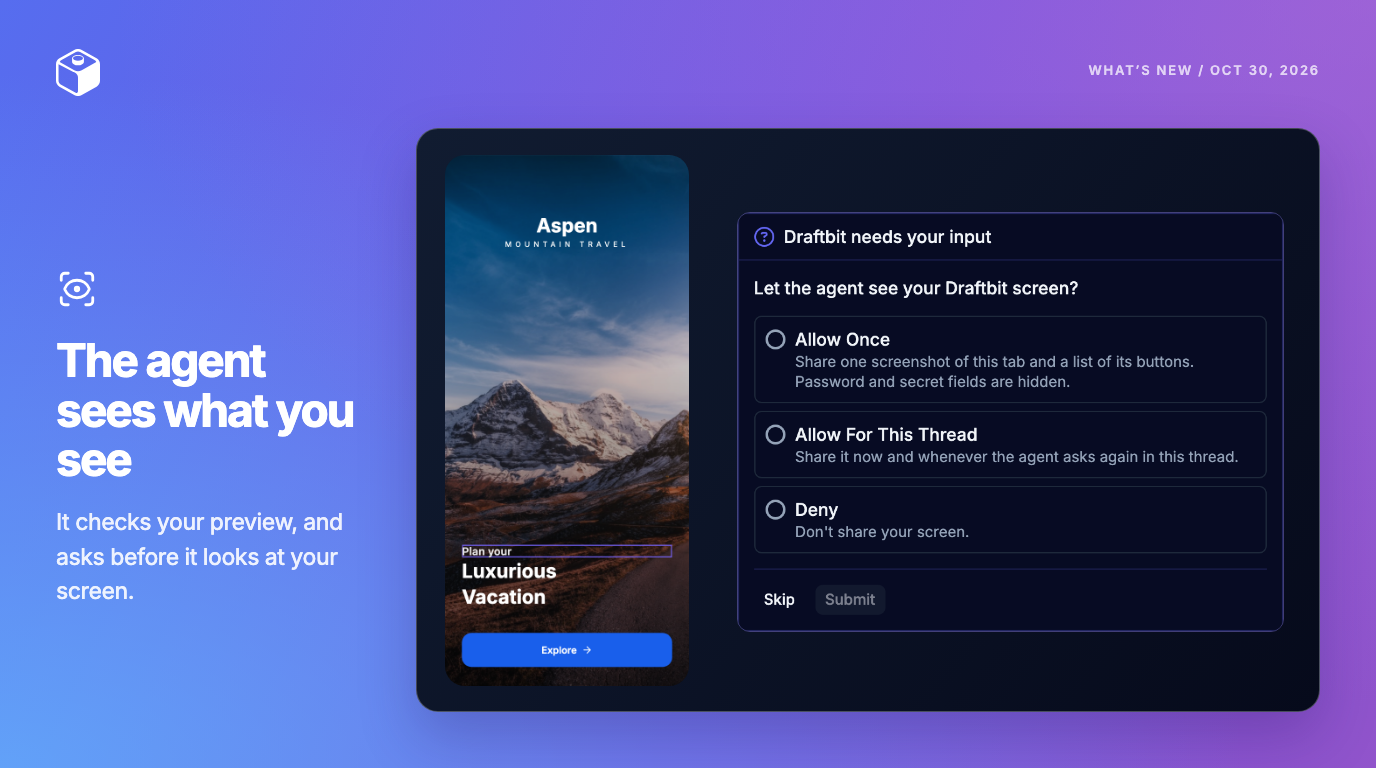
Describing a layout problem in words is slow, and so is pasting screenshots into chat. Now the agent can take a screenshot of your web preview to check its own work, and you'll see a message when it does. When it needs to see more, it asks to see your whole Draftbit screen, and you choose Allow Once, Allow For This Thread, or Deny, with passwords and secret fields hidden. The preview screenshots section has more.
The agent can also read App Store Connect for you, so you can ask about your builds, TestFlight, reviews, and ratings in chat. Turn on Let the agent read App Store Connect in the App Store Connect setup.
Find settings, integrations, and history in one place each
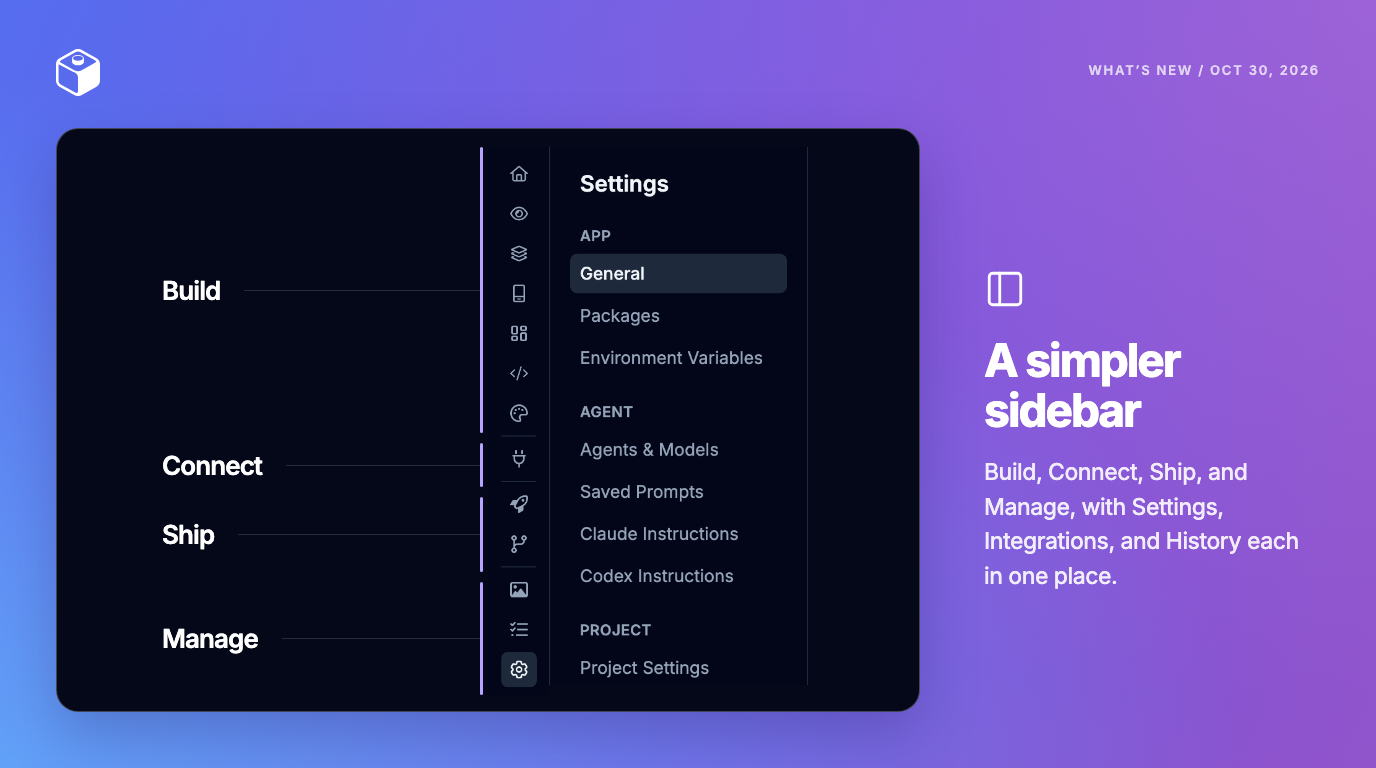
The left sidebar had grown to 18 icons on a mobile app, with settings spread across four pages, so we've regrouped it into Build, Connect, Ship, and Manage. Settings now holds what used to be App Settings, Build Config, Project Settings, and Agent Config. Integrations holds your APIs and your project's MCPs, History holds Versions and Backups, and Logs moved into the More menu. Old links still take you to the right place, and the Settings guide shows where everything went.
Additional new & improved
- New projects: a Connect card on Create New Project for working in your own GitHub repository, and an Add a backend switch with a new API only option. The project page opens right away, the frontend's first build starts alongside the backend's, and app cards show live progress.
- Billing: turn on Auto top-up in Billing to buy credits when your balance runs low. Monthly credit packages now start at $5.
- Projects: switch between projects and apps, with search, from the menu at the top left of the builder.
- Agent: we email you when a long agent run finishes after you've stepped away, and prompts you send while other agents are busy wait in the thread and start on their own.
- Phones: the preview fits your screen, pinching zooms the canvas instead of the page, and Save and Publish stay in reach.
- Supabase: a Sync Development button deploys your
supabase/folder to Development, and the Supabase MCP can be limited to one project. - API backends can use a custom domain, and iOS apps can answer TestFlight's encryption question once in Settings.
Ask the agent for a few mockups before your next screen, or turn on over-the-air updates from Publishing. If something doesn't work the way this post says, reply here or reach out and we'll take a look. Happy building!

Build your app with Draftbit
Start free and build with AI in your browser.